Introduction
Thank you for purchasing a WordPress Theme. This documentation consists of several parts and shows you the entire process of setting up and administering a WordPress Website from scratch.
What is WordPress CMS?
WordPress is a free and open source blogging tool and a content management system (CMS) based on PHP and MySQL. It enables you to build Websites and powerful on-line applications and requires almost no technical skills or knowledge to manage. Many aspects, including its ease of use and extensibility, have made WordPress the most popular Web site software available. Learn More
What is a WordPress template
A WordPress template is a skin for a website built with the WordPress CMS platform. In other words, you can easily change your WordPress Web site appearance by installing a new template in a few easy steps. With all its simplicity, a WordPress template is provided with all the necessary source files and you are free to edit or extend it the way you need.
Help and Support
- mail us: support@starthemes.net
Files structure
The template package you have downloaded consists of several folders. Let's see what each folder contains:
- documentation - contains documentation files.
- documentation.html - the main documentation file. You are right here :)
- screenshots - contains template screenshots. Not for production.
- theme - contains WordPress theme files.
- theme####.zip - this folder content all the necessary files for the theme.
- sample_data - contains files that can make your WordPress website look like our live demo.
- sample_data.xml - contains all template sample data (posts, pages, categories, etc.).
- various images and other media files
- manuall_install - contains files that can make your WordPress website look like our live demo.
- uploads - contains theme images.
- theme#####.sql - database backup file (contains theme content).
- license.txt - contains license details.
- readme.txt - contain information about theme images path and font use and usage scritps.
Template installation
Template installation is very easy process. The installation process includes only two simple steps: theme installation and sample data installation.
All installation steps can be done within WordPress interface. It makes process comfortable and fast.
Step 1. Theme installation
- Go to the menu Appearance > Themes and click the Add New Theme button.
- Click the Upload link.
- Click the Browse button and navigate to the unzipped template package on your computer.
- Look for a file called fixwood-pro.zip Click on it to select, then click OK.
- Click the Install Now button and wait until the installation is complete.
- Click the Activate link to change the current layout of the site to the theme your purchased.
- Go to Appearance >> Theme Options >> Restore Default.
Congratulations, your theme have been successfully installed!
Step 2. Sample Data Installation
To make your WordPress website look like our live demo, please follow the instructions below.
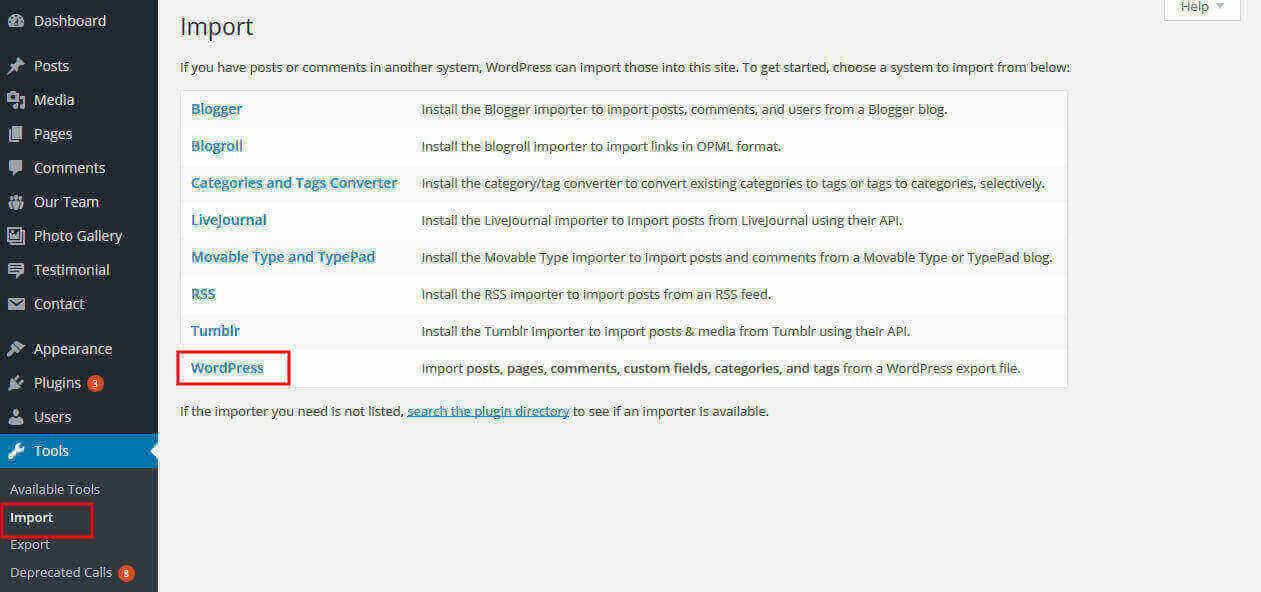
- Go to the tools Select import option and select wordpress and install then browse xml file and you'r done. See below screenshot.
How to set up homepage
Setup Header
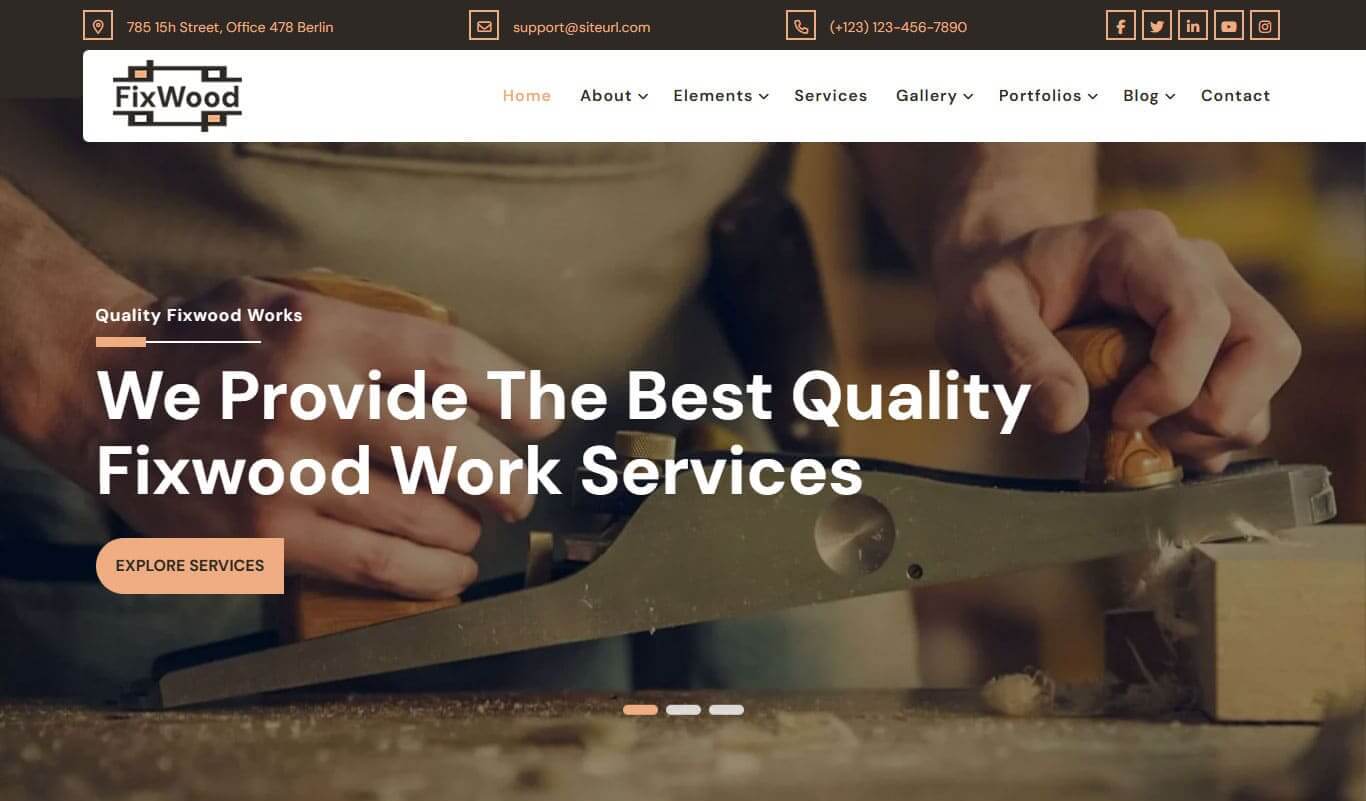
Follow these instructions to setup header.
- For Top Header: For changing top header contact details go to Appearance >> Theme Option >> Basic Setting >> Add Contact Details - Social Icons
- For Site Name/Logo: For changing site name go to Settings >> General >> Site Title OR if you want to uplaod logo for your site go to Appearance >> Theme Options >> Basic settings >> Logo. Please see the theme option tab in this documentation for more details.
- For Navigation: See the Setup Navigation tab of this documentation.
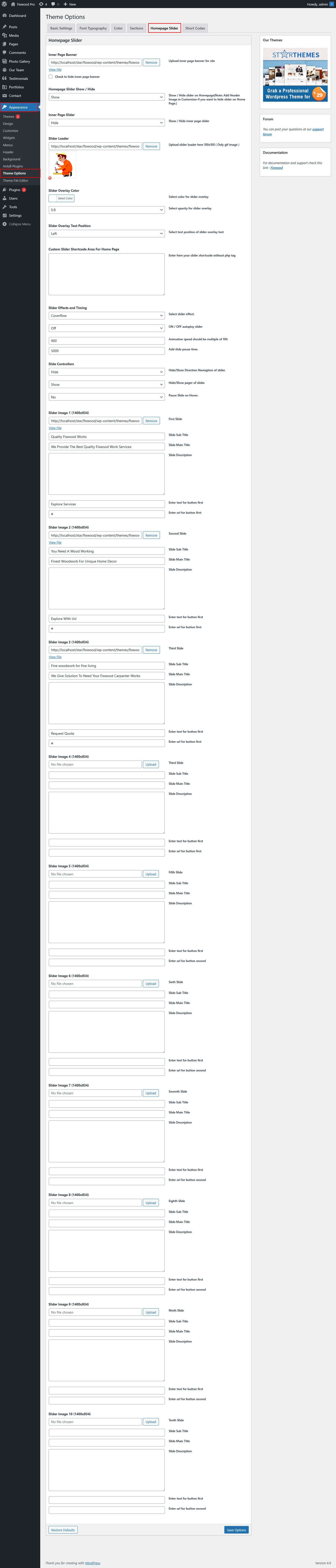
- For Slider: Go to Appearance >> Theme Options >> Homepage Slider >> Upload image, Add Title and Sub Title
Setup Featured Box Section

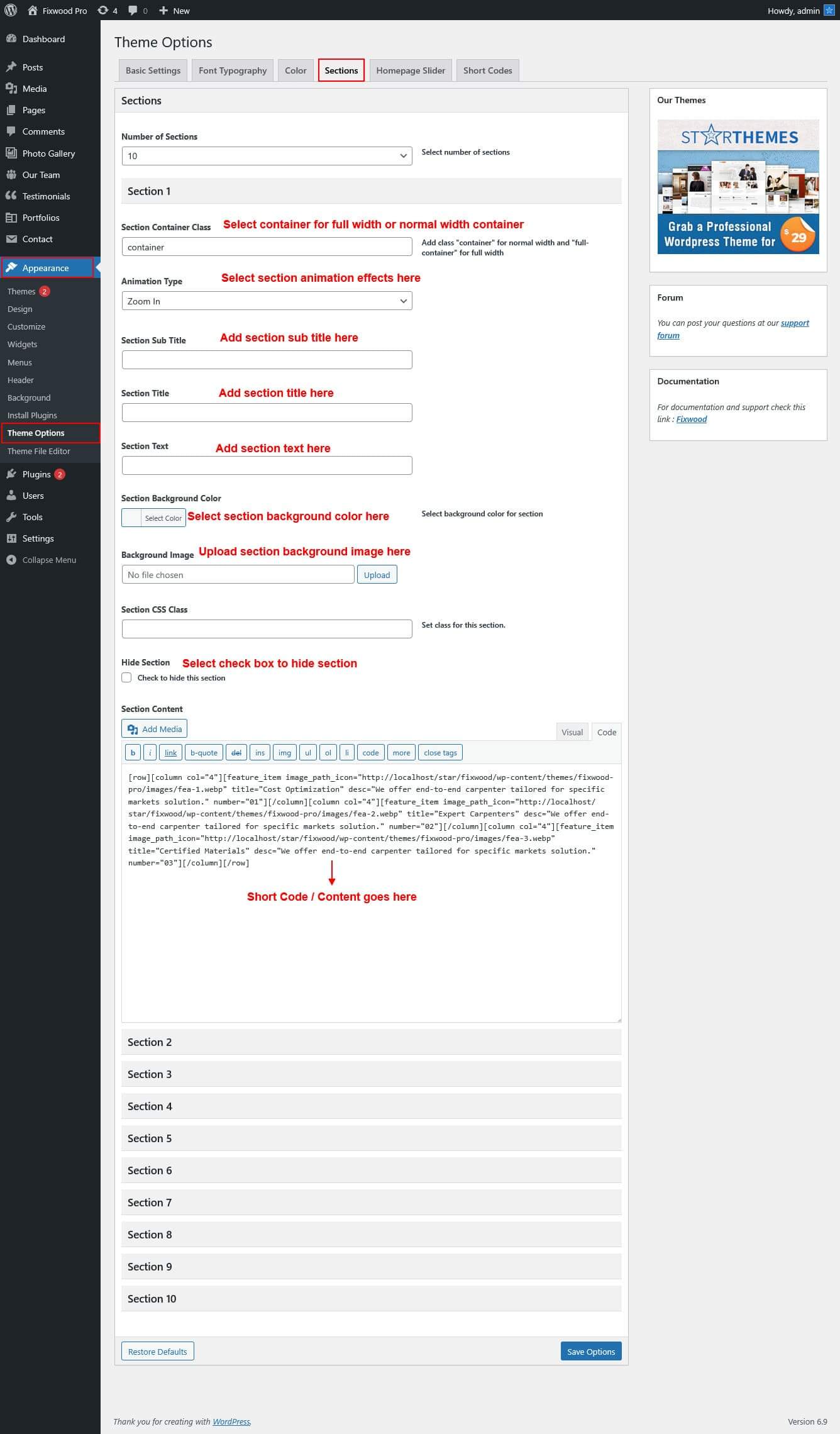
For setting up Featured Box section Go to >> Appearance >> Theme Options >> Sections >> Select Section 1.
Shortcode/Content for Featured Box Section.
[row][column col="4"][feature_item image_path_icon="http://localhost/star/fixwood/wp-content/themes/fixwood-pro/images/fea-1.webp" title="Cost Optimization" desc="We offer end-to-end carpenter tailored for specific markets solution." number="01"][/column][column col="4"][feature_item image_path_icon="http://localhost/star/fixwood/wp-content/themes/fixwood-pro/images/fea-2.webp" title="Expert Carpenters" desc="We offer end-to-end carpenter tailored for specific markets solution." number="02"][/column][column col="4"][feature_item image_path_icon="http://localhost/star/fixwood/wp-content/themes/fixwood-pro/images/fea-3.webp" title="Certified Materials" desc="We offer end-to-end carpenter tailored for specific markets solution." number="03"][/column][/row]
Setup Who We About Fixwood Section
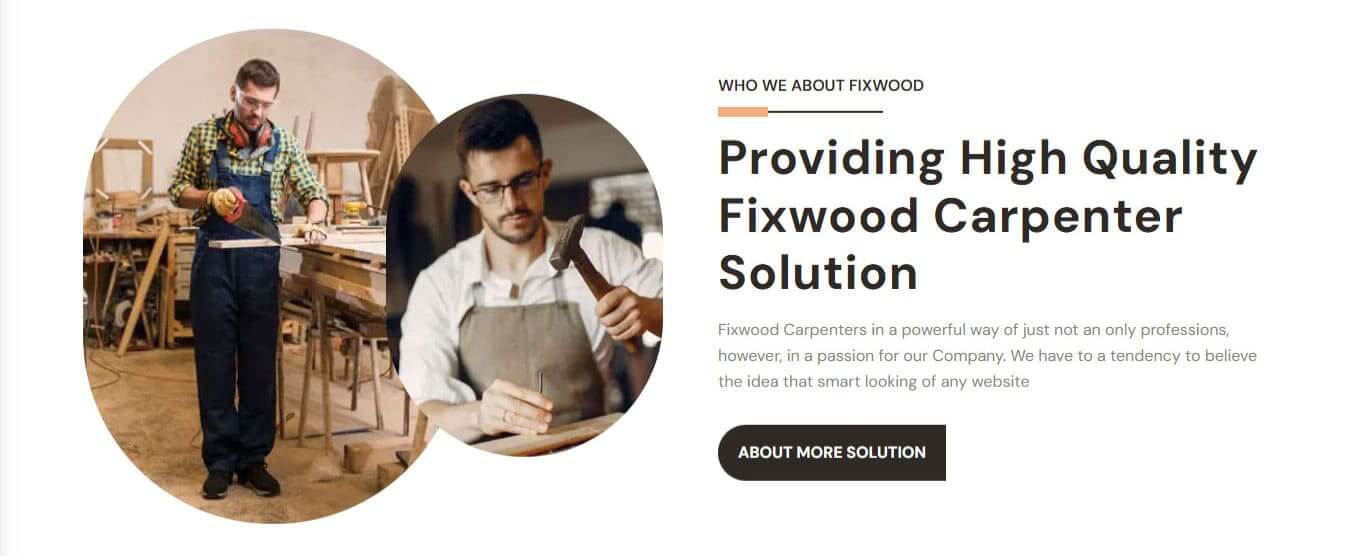
For setting up Who We About Fixwood section Go to >> Appearance >> Theme Options >> Sections >> Select Section 2.
Shortcode/Content for Who We About Fixwood Section.
[introduction sub_title="Who We About Fixwood" title="Providing High Quality Fixwood Carpenter Solution" image_path_1="http://localhost/star/fixwood/wp-content/themes/fixwood-pro/images/abt-img-1.webp" image_path_2="http://localhost/star/fixwood/wp-content/themes/fixwood-pro/images/abt-img-2.webp" btn_text="About More Solution" btn_link="#"]Fixwood Carpenters in a powerful way of just not an only professions, however, in a passion for our Company. We have to a tendency to believe the idea that smart looking of any website[/introduction]
Setup Counter Section
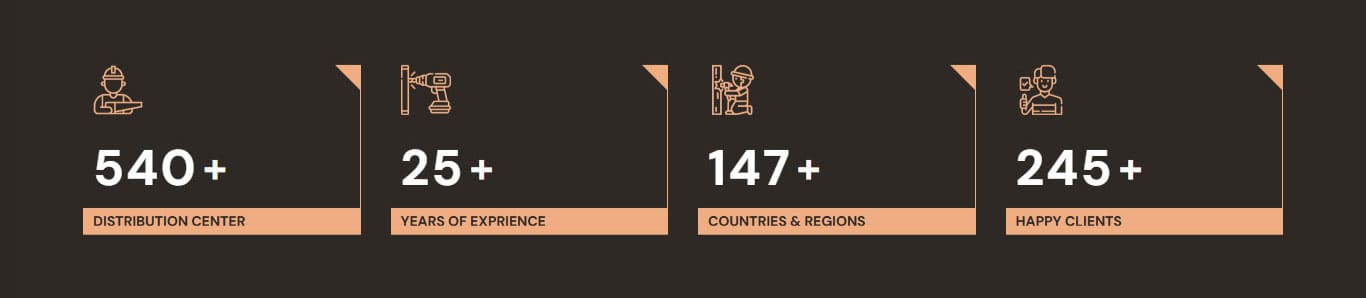
For setting up Counter section Go to >> Appearance >> Theme Options >> Sections >> Select Section 3.
Shortcode/Content for Counter Section.
[counter_wrap][counter image_path="http://localhost/star/fixwood/wp-content/themes/fixwood-pro/images/count-img-1.webp" title="Distribution Center" count="540" plus="yes" num_color="#ffffff" title_color="#2e2925"][counter image_path="http://localhost/star/fixwood/wp-content/themes/fixwood-pro/images/count-img-2.webp" title="Years Of Exprience" count="25" plus="yes" num_color="#ffffff" title_color="#2e2925"][counter image_path="http://localhost/star/fixwood/wp-content/themes/fixwood-pro/images/count-img-3.webp" title="Countries & Regions" count="147" plus="yes" num_color="#ffffff" title_color="#2e2925"][counter image_path="http://localhost/star/fixwood/wp-content/themes/fixwood-pro/images/count-img-4.webp" title="Happy Clients" count="245" plus="yes" num_color="#ffffff" title_color="#2e2925"][/counter_wrap]
Setup Our Services Section
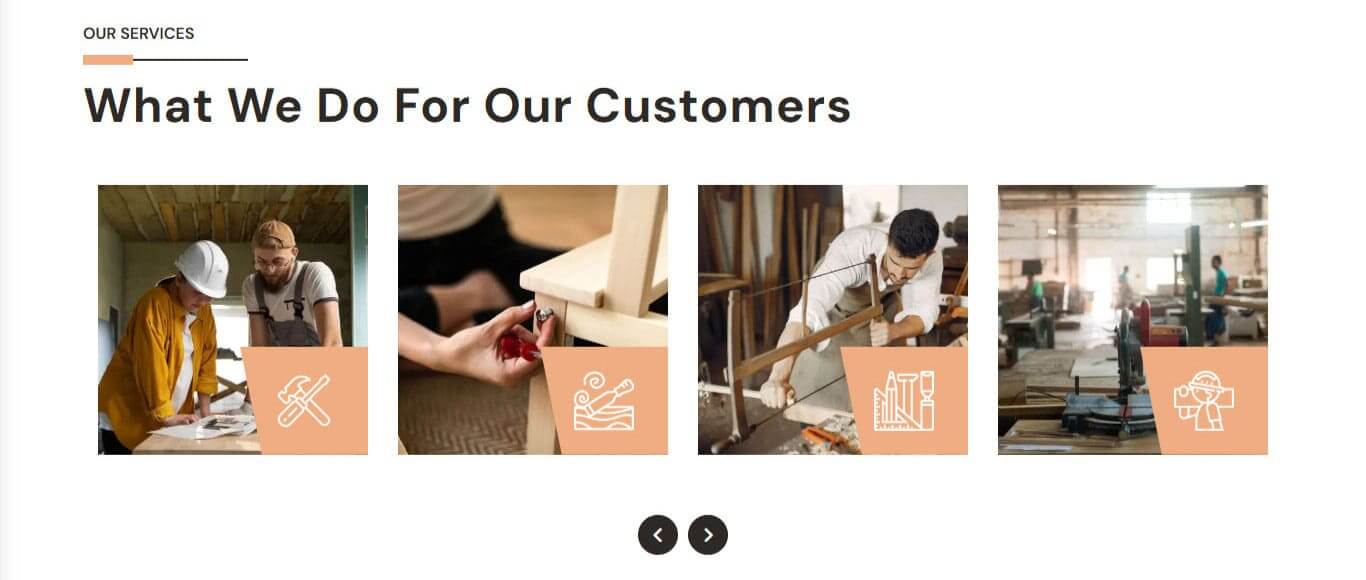
For setting up Our Services section Go to >> Appearance >> Theme Options >> Sections >> Select Section 4.
Shortcode/Content for Our Services Section.
[services_lists layout="carousel"][service_item image_path="http://localhost/star/fixwood/wp-content/themes/fixwood-pro/images/serv1.webp" img_path_icon="http://localhost/star/fixwood/wp-content/themes/fixwood-pro/images/sericon1.webp" title="Home Renovation" ser_link="#"]We offer end-to-end carpenter tailored for specific markets solution.[/service_item][service_item image_path="http://localhost/star/fixwood/wp-content/themes/fixwood-pro/images/serv2.webp" img_path_icon="http://localhost/star/fixwood/wp-content/themes/fixwood-pro/images/sericon2.webp" title="Furniture Remodelling" ser_link="#"]We offer end-to-end carpenter tailored for specific markets solution.[/service_item][service_item image_path="http://localhost/star/fixwood/wp-content/themes/fixwood-pro/images/serv3.webp" img_path_icon="http://localhost/star/fixwood/wp-content/themes/fixwood-pro/images/sericon3.webp" title="General Carpentry" ser_link="#"]We offer end-to-end carpenter tailored for specific markets solution.[/service_item][service_item image_path="http://localhost/star/fixwood/wp-content/themes/fixwood-pro/images/serv4.webp" img_path_icon="http://localhost/star/fixwood/wp-content/themes/fixwood-pro/images/sericon4.webp" title="Manufacture Furniture" ser_link="#"]We offer end-to-end carpenter tailored for specific markets solution.[/service_item][service_item image_path="http://localhost/star/fixwood/wp-content/themes/fixwood-pro/images/serv5.webp" img_path_icon="http://localhost/star/fixwood/wp-content/themes/fixwood-pro/images/sericon5.webp" title="Doors & Windows" ser_link="#"]We offer end-to-end carpenter tailored for specific markets solution.[/service_item][service_item image_path="http://localhost/star/fixwood/wp-content/themes/fixwood-pro/images/serv6.webp" img_path_icon="http://localhost/star/fixwood/wp-content/themes/fixwood-pro/images/sericon6.webp" title="Deck & Porches" ser_link="#"]We offer end-to-end carpenter tailored for specific markets solution.[/service_item][/services_lists]
Setup Our Portfolio Work Section
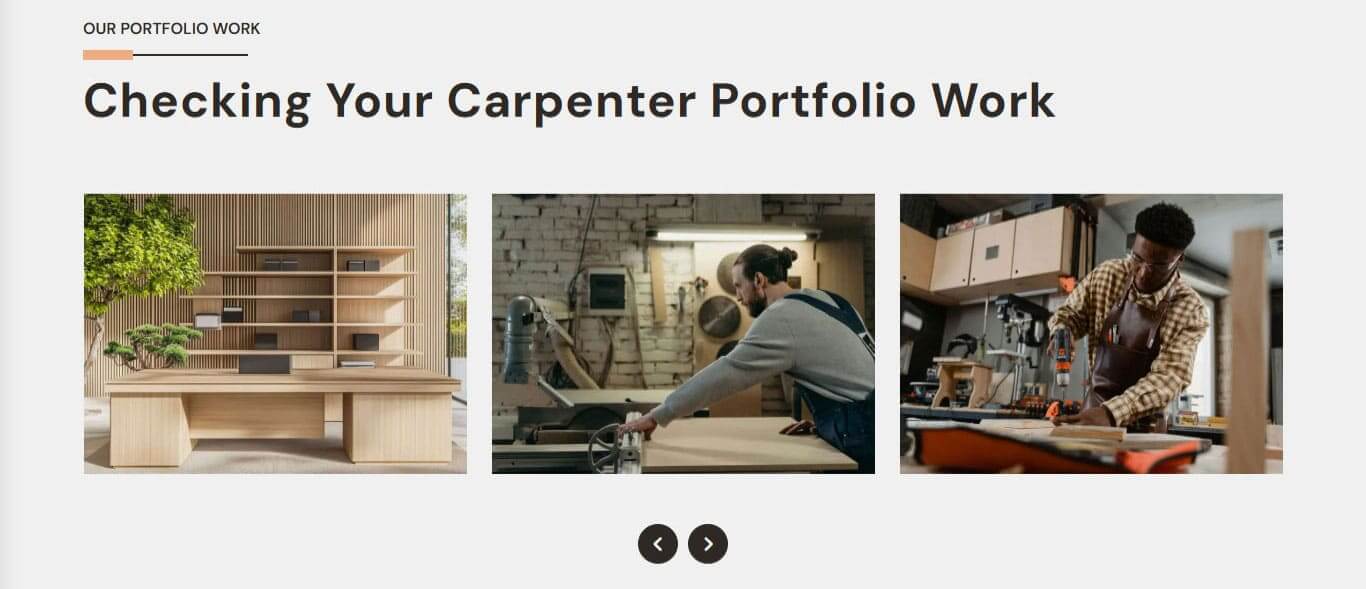
For setting up Our Portfolio Work section first of all you need to add some portfolio by using Portfolio post type please see the below screenshot.
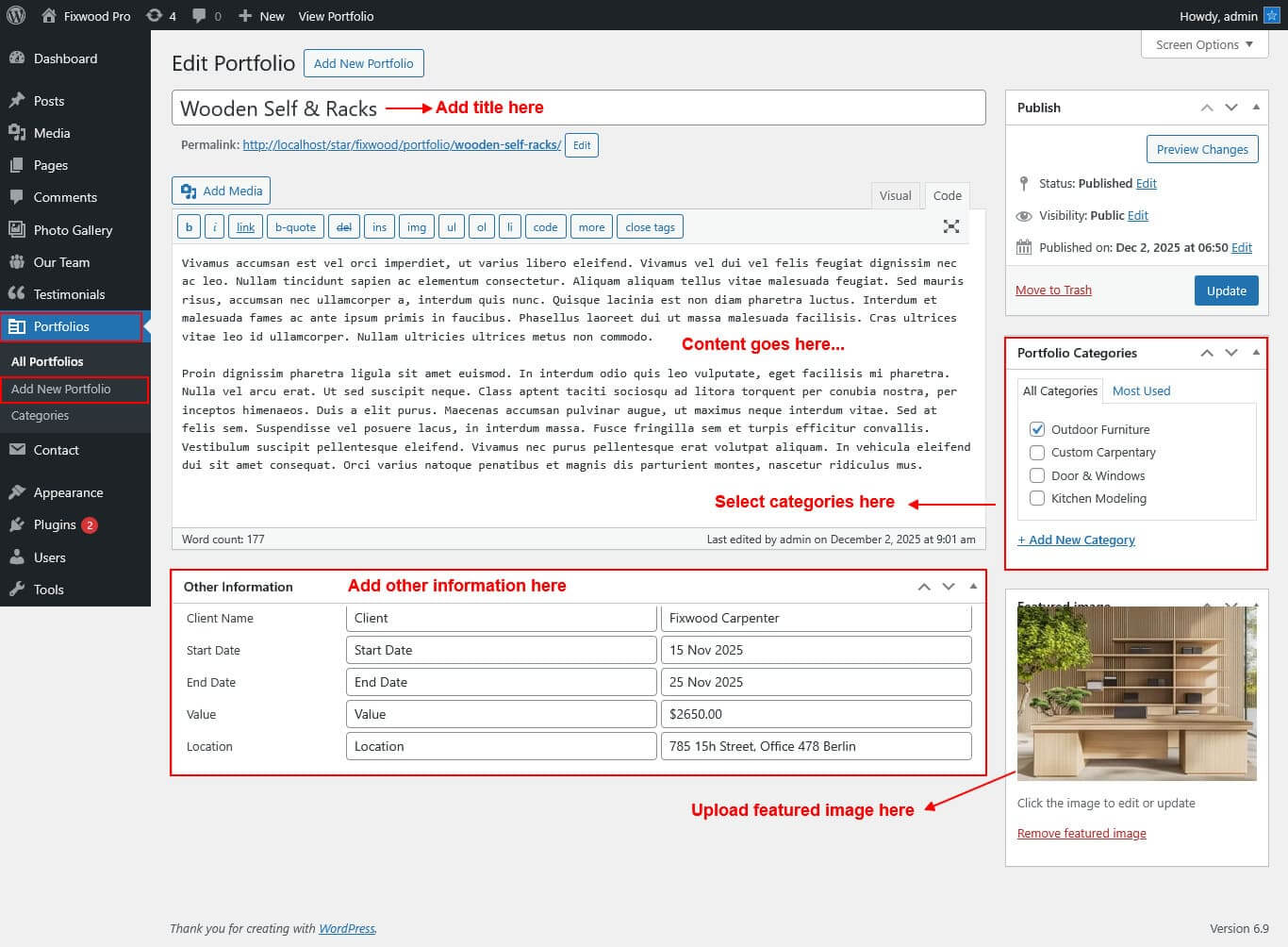
After adding post to Our Portfolio Work go to Appearance >> Theme Options >> Sections >> Section 5.
Shortcode/Content: for Our Portfolio Work Section
[portfolio type="slider" show="-1"]
Grid / Filter Layout : [portfolio type="grid" show="-1" column="2/3/4" filter="true/false"]
Setup Our Experts Team Section
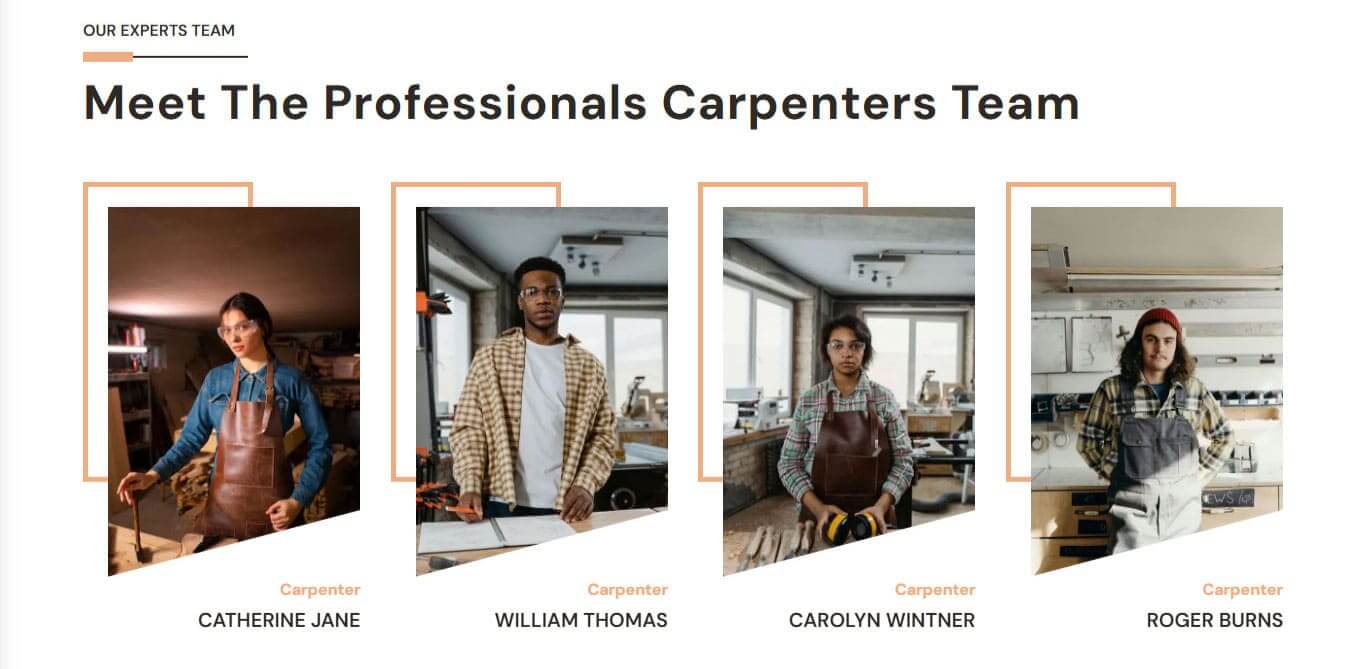
For setting up Our Experts Team section first of all you need to add some team by using Team post type please see the below screenshot.
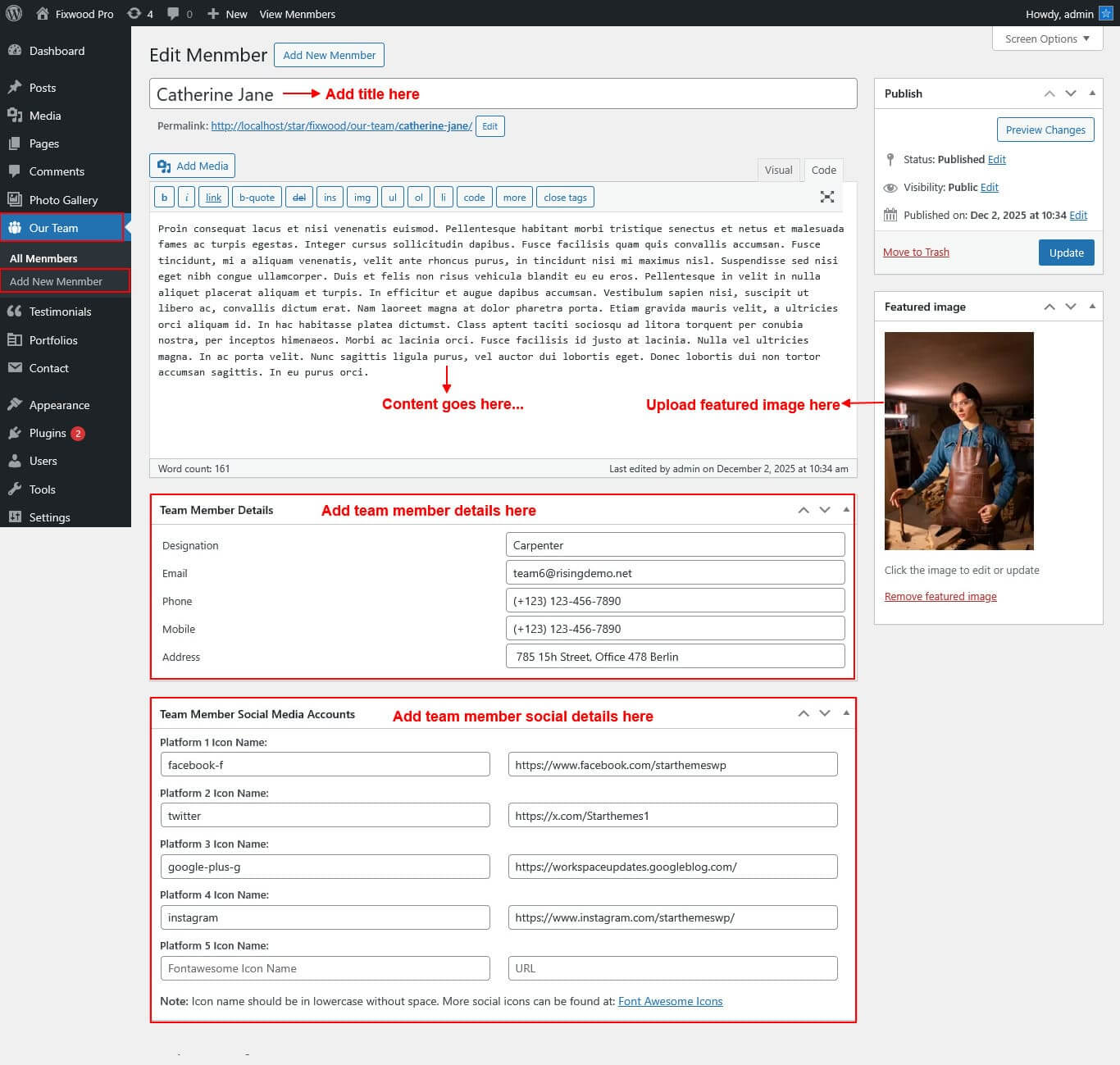
After adding post to Our Experts Team go to Appearance >> Theme Options >> Sections >> Section 6.
Shortcode/Content: for Our Experts Team Section
Slider Layout : [our-team type="slider" show="-1"]
Grid Layout : [our-team type="grid" show="-1" column="2/3/4"]
Setup Client Testimonials Section
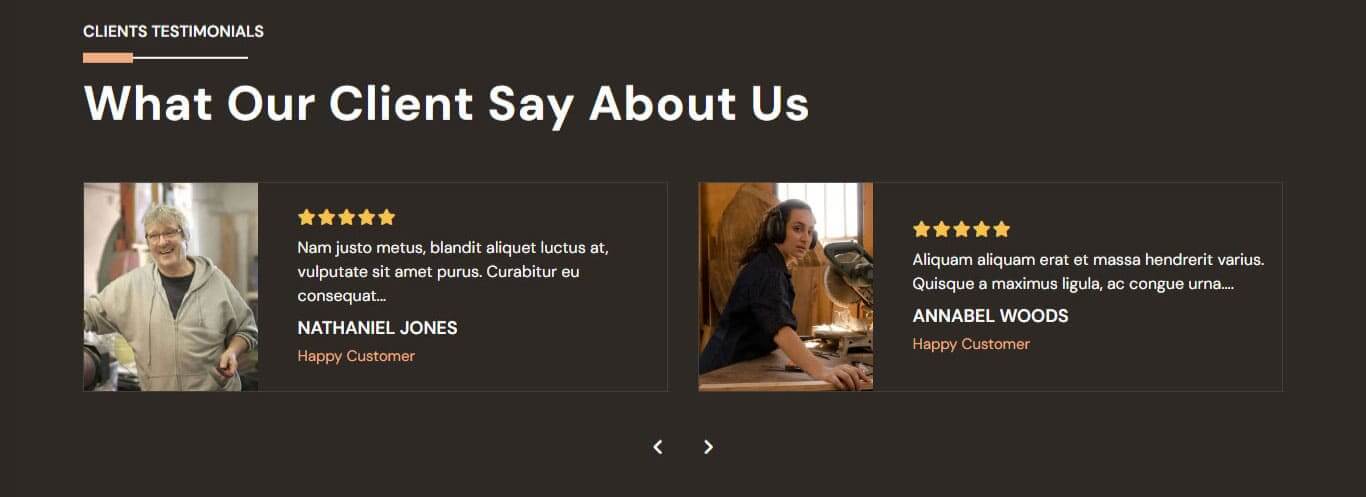
For setting up Client Testimonials section first of all you need to add some testimonials by using testimonials post type please see the below screenshot.
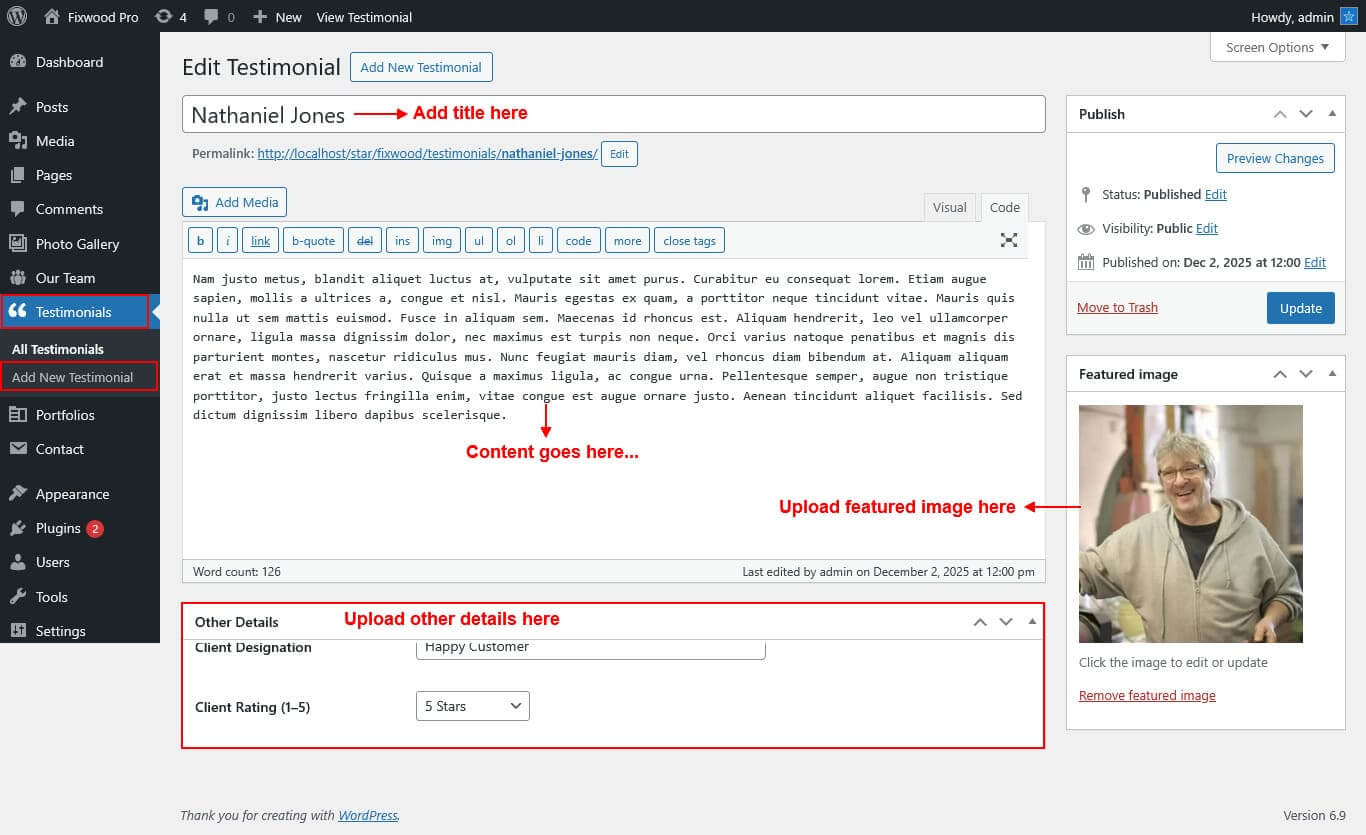
After adding post to Client Testimonials go to Appearance >> Theme Options >> Sections >> Section 7.
Shortcode/Content: for Client Testimonials Section
[testimonials show="-1"]
Setup Working Process Section
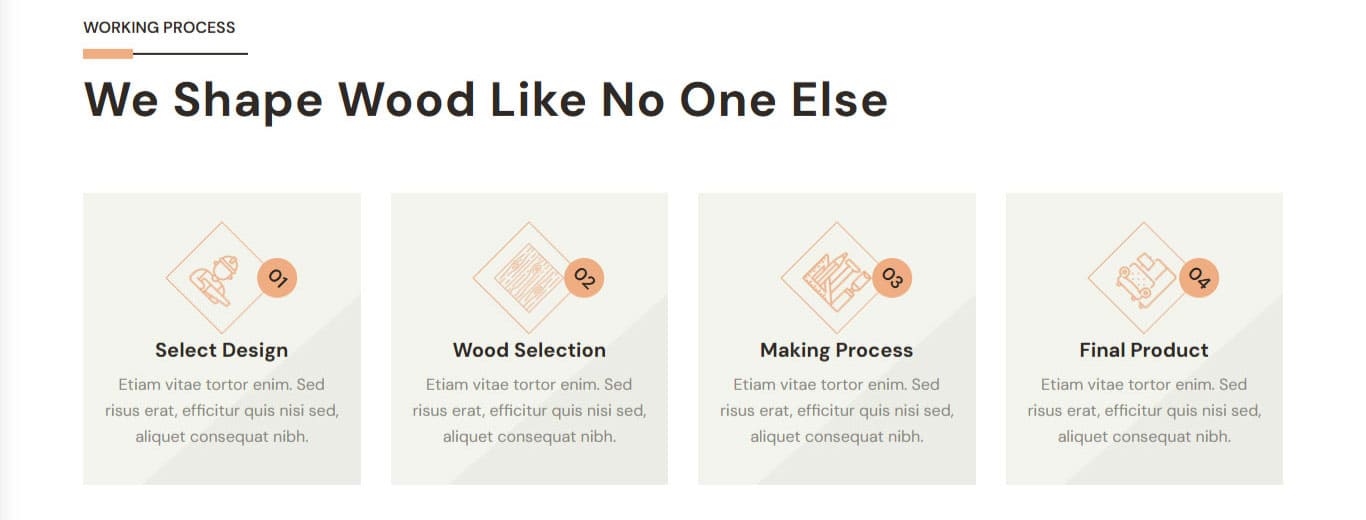
For setting up Working Process section Go to >> Appearance >> Theme Options >> Sections >> Select Section 8.
Shortcode/Content for Working Process Section.
[row][column col="3"][process_item image_path_icon="http://localhost/star/fixwood/wp-content/themes/fixwood-pro/images/prc-1.webp" title="Select Design" desc="Etiam vitae tortor enim. Sed risus erat, efficitur quis nisi sed, aliquet consequat nibh." number="01"][/column][column col="3"][process_item image_path_icon="http://localhost/star/fixwood/wp-content/themes/fixwood-pro/images/prc-2.webp" title="Wood Selection" desc="Etiam vitae tortor enim. Sed risus erat, efficitur quis nisi sed, aliquet consequat nibh." number="02"][/column][column col="3"][process_item image_path_icon="http://localhost/star/fixwood/wp-content/themes/fixwood-pro/images/prc-3.webp" title="Making Process" desc="Etiam vitae tortor enim. Sed risus erat, efficitur quis nisi sed, aliquet consequat nibh." number="03"][/column][column col="3"][process_item image_path_icon="http://localhost/star/fixwood/wp-content/themes/fixwood-pro/images/prc-4.webp" title="Final Product" desc="Etiam vitae tortor enim. Sed risus erat, efficitur quis nisi sed, aliquet consequat nibh." number="04"][/column][/row]
Setup Frequently Ask Question Section
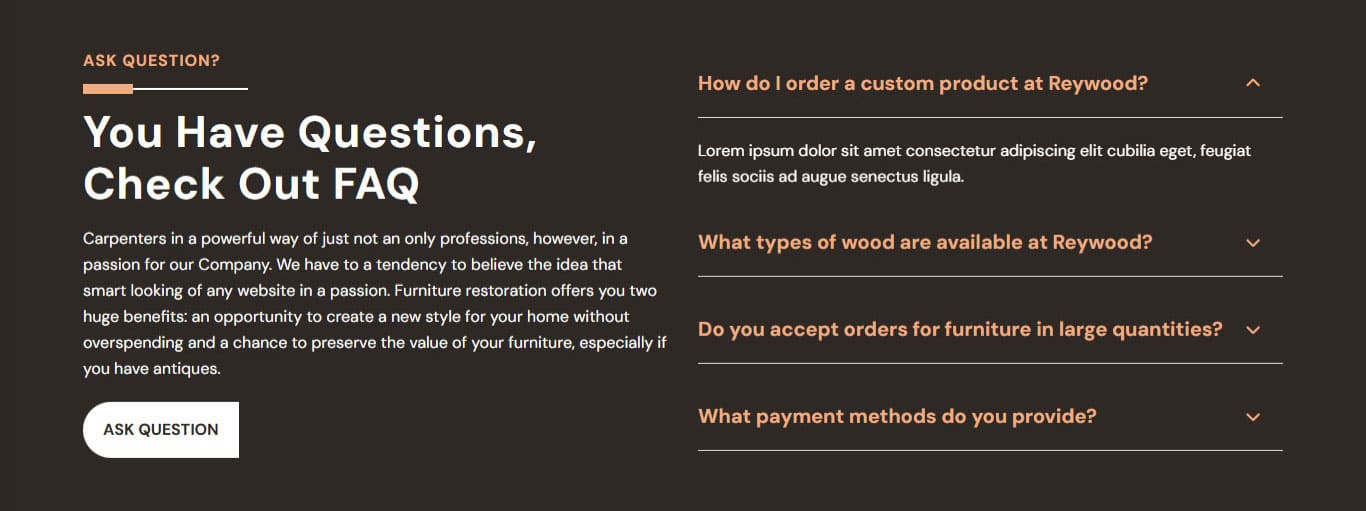
For setting up Frequently Ask Question section Go to >> Appearance >> Theme Options >> Sections >> Select Section 9.
Shortcode/Content for Frequently Ask Question Section.
[row][column col="6" subcls="custom-faq"][custom_heading sub_title="Ask Question?" sub_title_color="#efad81" sub_title_font_size="16px" sub_title_font_family="DM Sans" title="You Have Questions, Check Out FAQ" title_color="#ffffff" font_size="44px" font_weight="700" font_family="DM Sans" align="left"]<p>Carpenters in a powerful way of just not an only professions, however, in a passion for our Company. We have to a tendency to believe the idea that smart looking of any website in a passion. Furniture restoration offers you two huge benefits: an opportunity to create a new style for your home without overspending and a chance to preserve the value of your furniture, especially if you have antiques.</p>[buttonstyle1 name="Ask Question" link="#" target="_blank"][/column][column col="6" subcls="custom-accordian"][accordion][accordion_content title="How do I order a custom product at Reywood?"]Lorem ipsum dolor sit amet consectetur adipiscing elit cubilia eget, feugiat felis sociis ad augue senectus ligula.[/accordion_content][accordion_content title="What types of wood are available at Reywood?"]Lorem ipsum dolor sit amet consectetur adipiscing elit cubilia eget, feugiat felis sociis ad augue senectus ligula.[/accordion_content][accordion_content title="Do you accept orders for furniture in large quantities?"]Lorem ipsum dolor sit amet consectetur adipiscing elit cubilia eget, feugiat felis sociis ad augue senectus ligula.[/accordion_content][accordion_content title="What payment methods do you provide?"]Lorem ipsum dolor sit amet consectetur adipiscing elit cubilia eget, feugiat felis sociis ad augue senectus ligula.[/accordion_content][/accordion][/column][/row]
Setup Top Blog & Articles Section
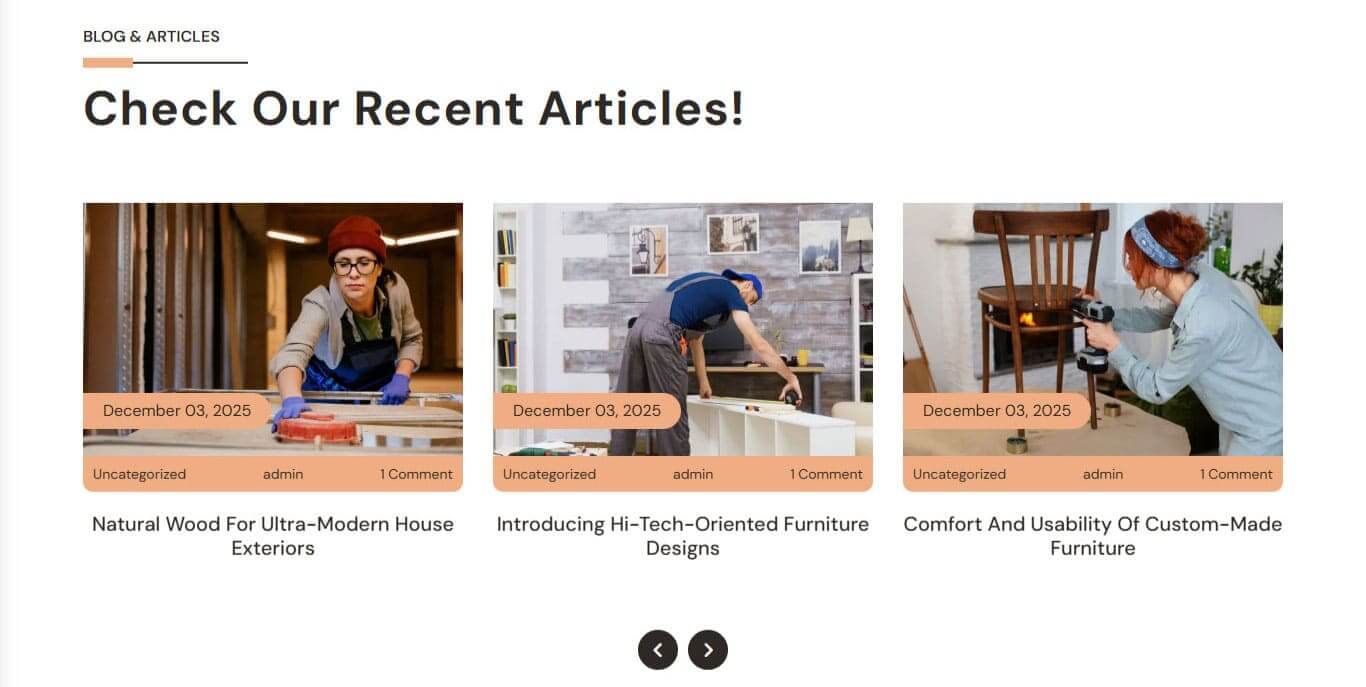
For setting up Top Blog & Articles section first of all you need to add some posts by using Posts. Follow below instruction to add posts.
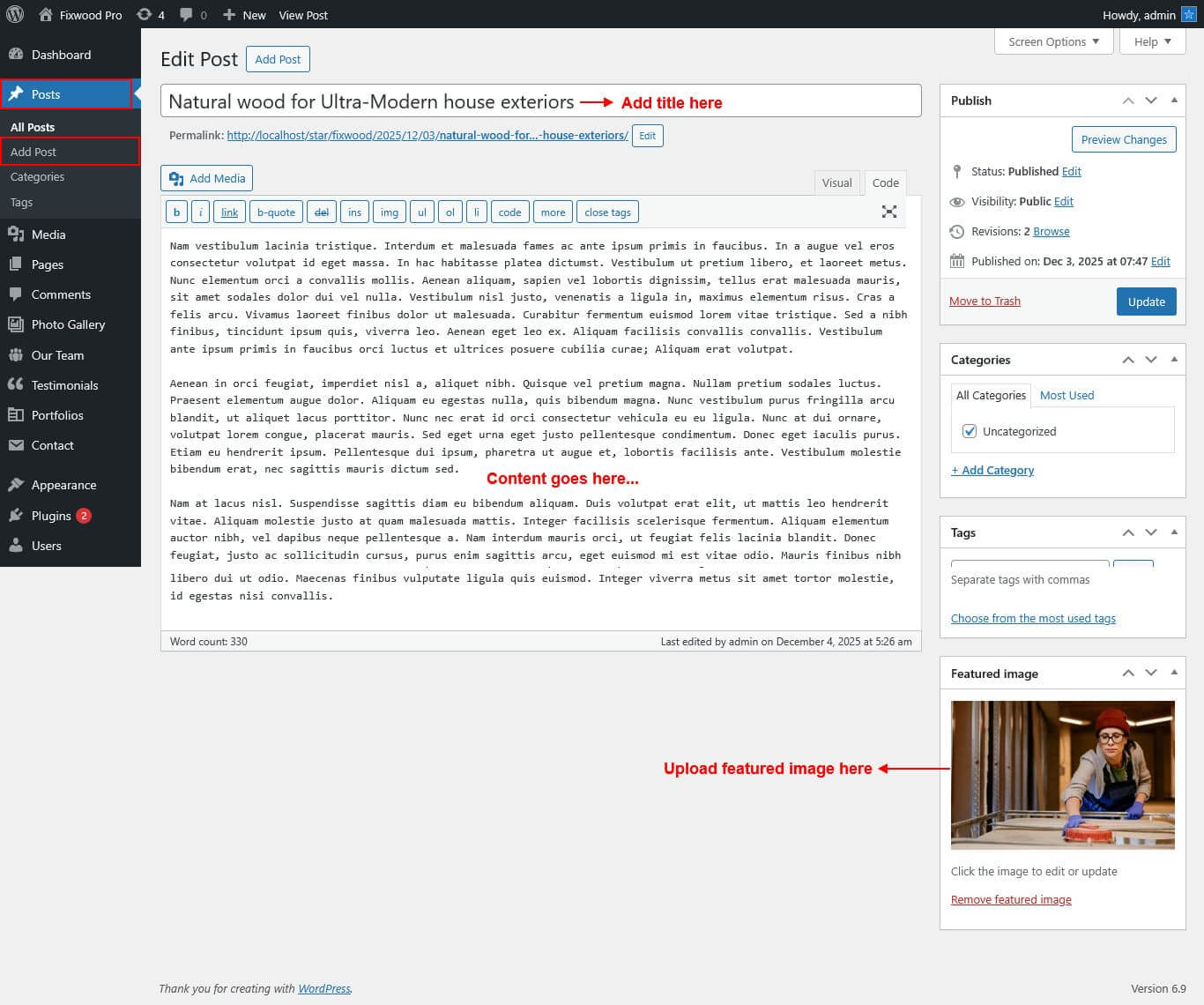
Once you added posts in the Top Blog & Articles Posts type after that you just have to add post shortcode in the sections content area and you'r done. (Section 10.)
Shortcode/Content for Top Blog & Articles Section
[latest-news show="-1" type="slider" from_category="Add category slug" comment="show/hide" date="show/hide" author="show/hide" category="show/hide"]
[latest-news show="3" type="grid" column="2/3/4" from_category="Add category slug" comment="show/hide" date="show/hide" author="show/hide" category="show/hide"]
Setup Footer
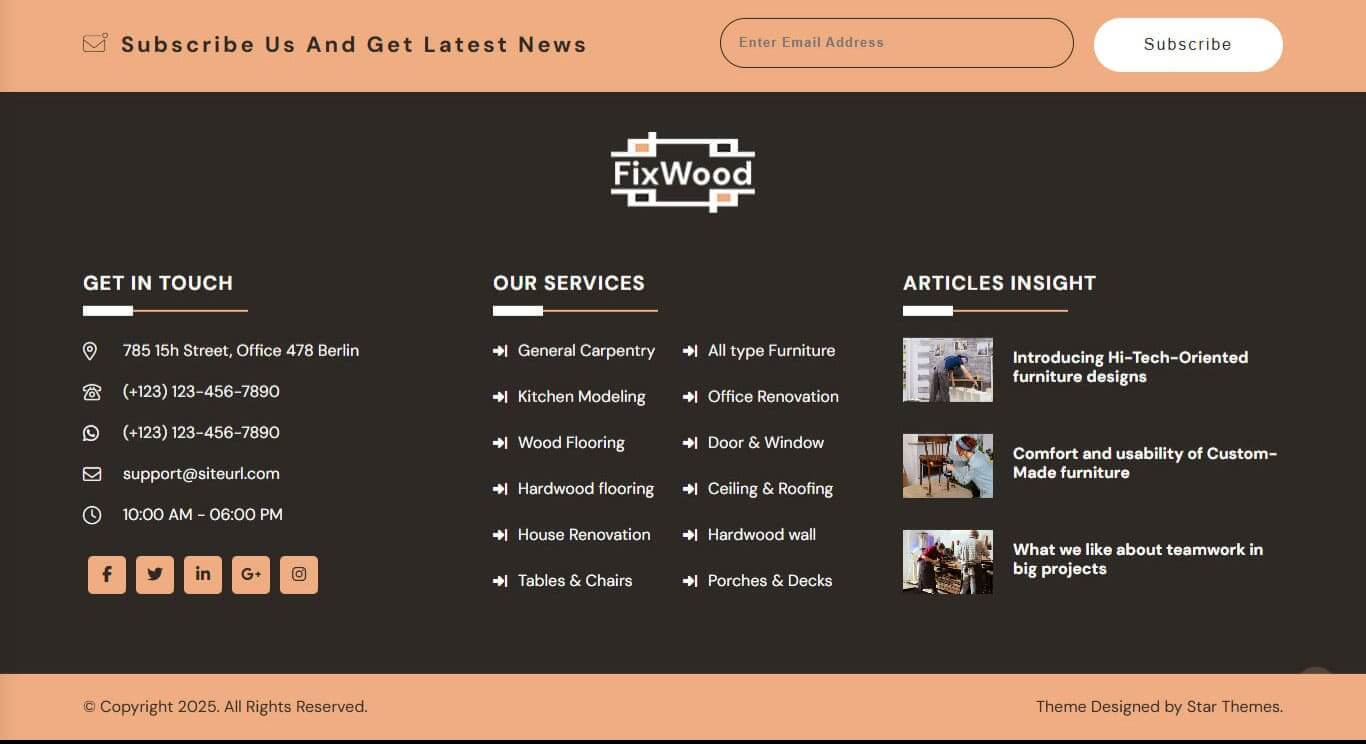
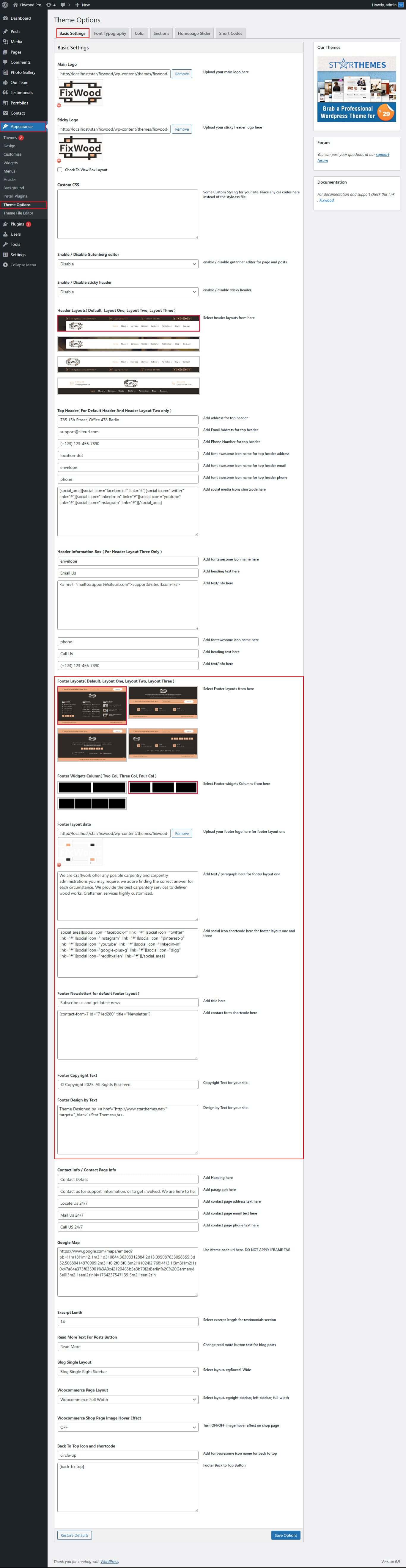
Go to Appearance >> Theme Options >> Basic Setting.
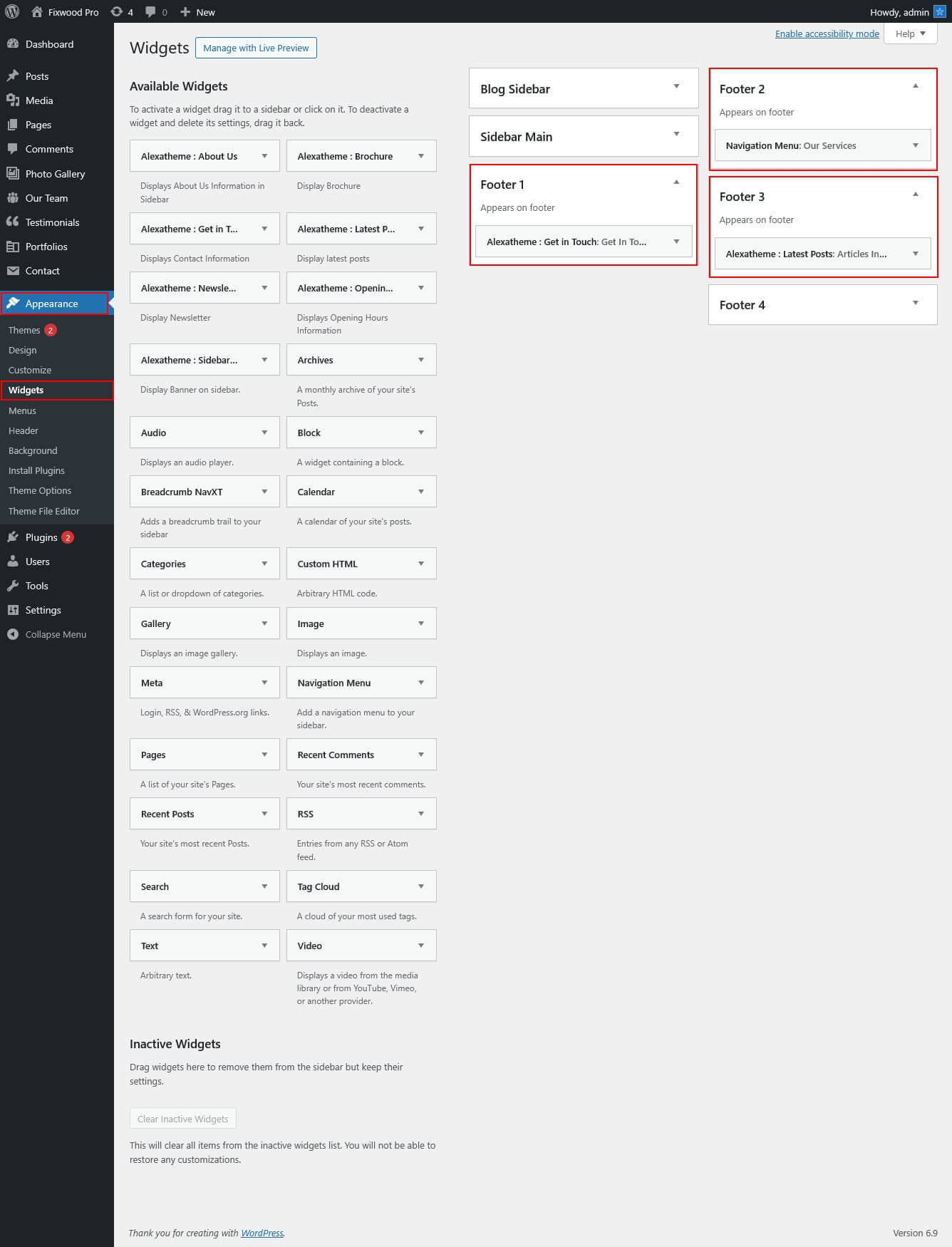
- For footer column 1: Go to Appearance >> Widget >> Footer 1 >> Add Widget Get In Touch
- For footer column 2: Go to Appearance >> Menu >> Create Menu >> Select Menu Location >> Add Menu. >> Our Services
- For footer column 3: Go to Appearance >> Widget >> Footer 3 >> Add Widget Our Latest News
- For footer column 4: Go to Appearance >> Widget >> Footer 4 >>
- For footer copyright text: Go to Appearance >> Theme Options >> Besic Setting >> Footer Copyright
- For design by text: Go to Appearance >> Theme Options >> Besic Setting >> Footer Design by
Setup Navigation
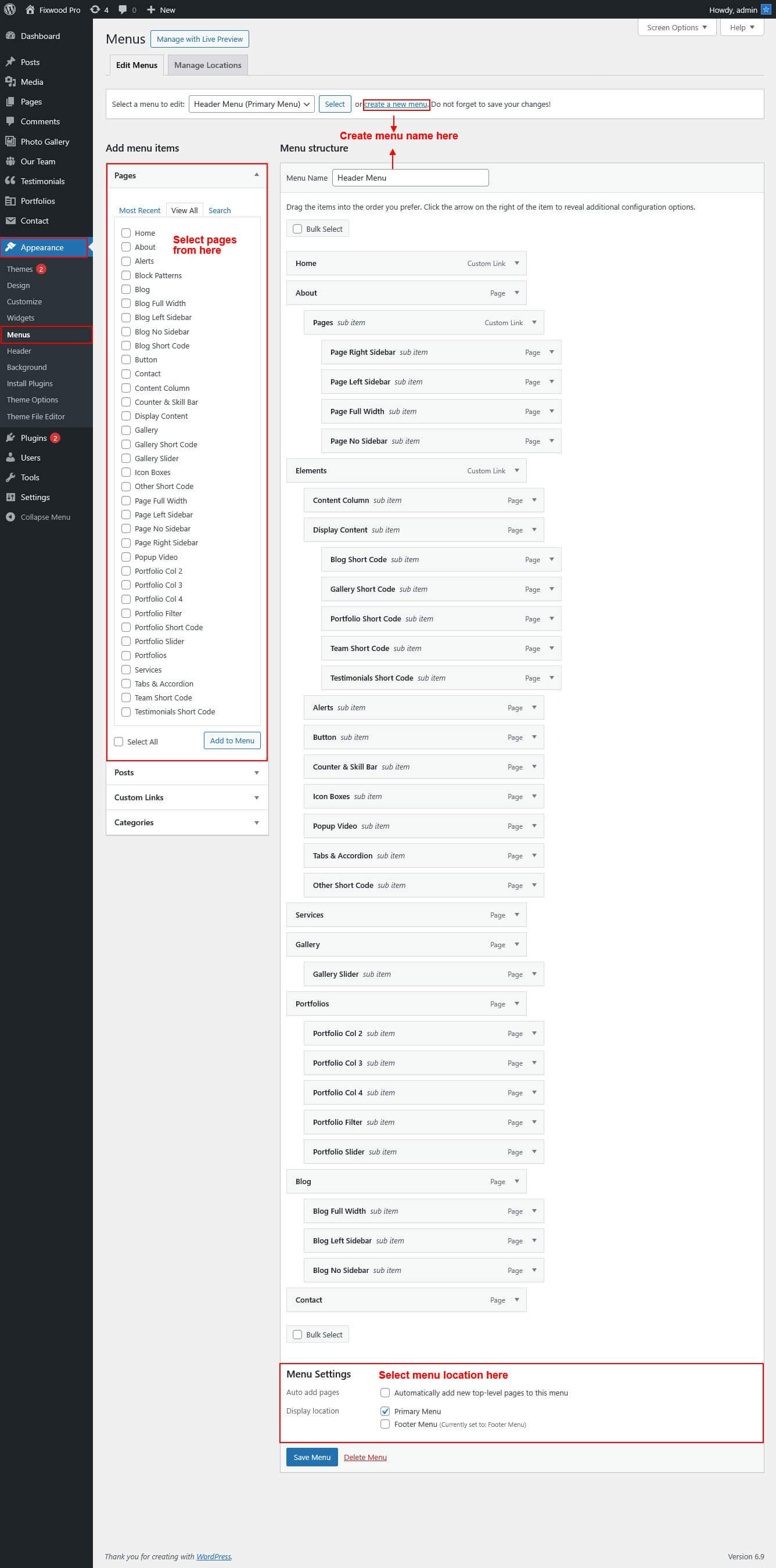
- First of all create pages from go to Pages >> Add new page.
- Go to Appearance >> Menu
- Click on Create a new menu link
- Give a name to your menu in Menu name and click save menu button
- Once you have create menu. You need to add pages by selecting with checkboxes. After adding menu list you can arrange it by drag and drop.
- Select menu theme location from the below checkboxes
See this screenshot for better understanding.
Page Templates and Sidebars
Page Templates
- Default Template (the default page template with a right sidebar position)
- Full Screen Page (the full screen page template without a sidebar)
- Full Width Page (a page template with one column without a sidebar)
- Left Sidebar (a page template with left sidebar position)
- No Sidebar (a page template have space on left and right.)
- Blog (Full Width) (a blog templates with one column without sidebar)
- Blog (Left Sidebar) (a blog templates with left sidebar position)
- Blog (Right Sidebar) (a blog template with right sidebar position)
- Blog (No Sidebar) (a blog template with no sidebar position)
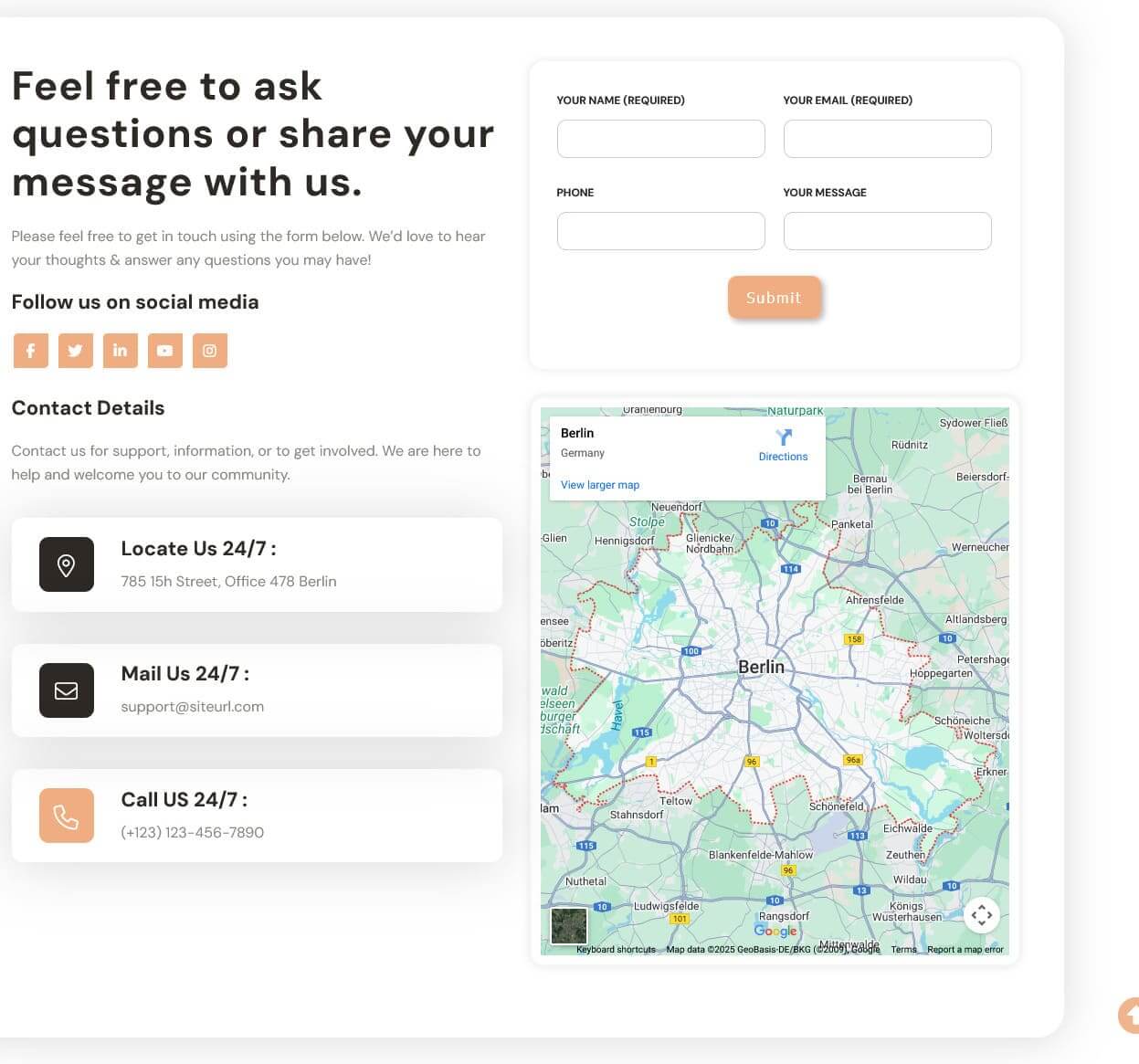
- Contact (Full Width) (a contact template with add google map position)
Posts, Categories and Post Formats
Adding category
Review the following article for more information on adding categories: http://codex.wordpress.org/Manage_Categories_SubPanel
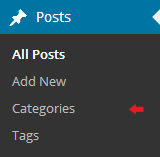
- Log into your WordPress Administration Panel (Dashboard).
- Click the Posts tab.
- With that done, click Categories for blog posts.
- Type in the name of your new category.
- After that, click the Add New Category button.
Creating a Blog post
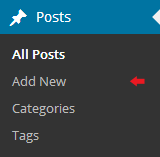
- Log into your WordPress Administration Panel (Dashboard).
- Click the Posts tab.
- Click the Add New tab.
- Type in your post content. For more information on adding posts, please check the following link http://codex.wordpress.org/Posts_Add_New_SubPanel.
Shortcodes
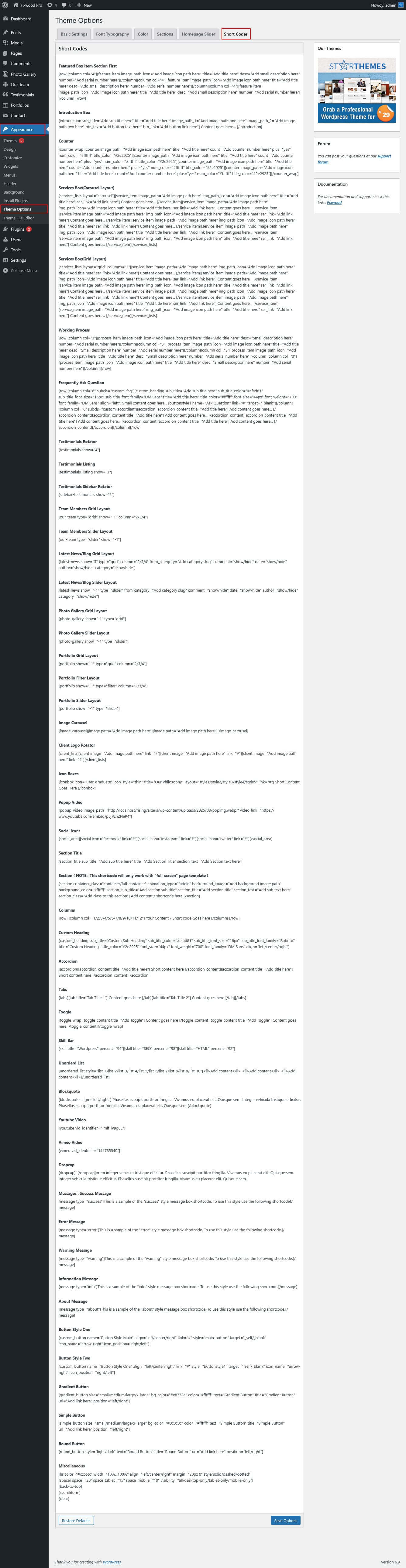
A shortcode is a powerful content building tool http://codex.wordpress.org/Shortcode. Shortcodes are easy to use. First of all, make sure that the editing mode is set to Visual.
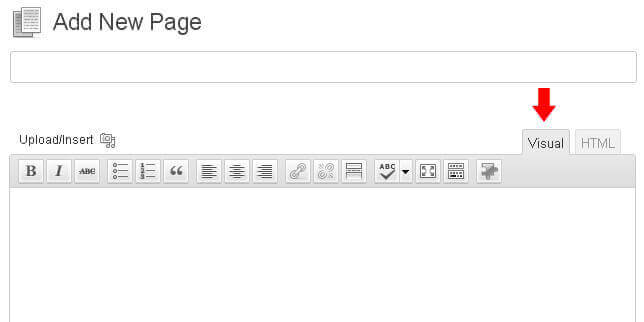
All available shortcodes are conditionally divided into these groups:
- Testimonials - used for testimonials output.
- Social icon - used for social icon output.
- One column, Two column, Three column, Four column, Six column - used for display content on columns.
- Tabs - used for display tabs.
- Toggle content - used for display toggle.
- Accordion content - used for display accordion.
- Gradient Button - used for small, medium, large, xtra large gradient button.
- Simple Button - used for small, medium, large, xtra large simple button.
- Round Button - used for light, dark round button.
- Message Boxes - used for success, error, warning, info, about message boxes.
- Search - used to display search form.
- List style - used to display lists.
- Blogpost - used to display blog post.
Testimonial
[testimonials]
Elements
Column Content
[row][column col="1/2/3/4/5/6/7/8/9/10/11/12"]Your Content / Short code goes here...[/column][/row]
Description: used to display column content. You can also use col="One column, Two column, Three column, Four column, Six column".
Tabs
[tabs]
[tab title="TAB TITLE 1"]Tab Content goes here...[/tab]
[/tabs]
Description: use to display tab content.
Toggle content
[toggle_content title="Toggle Title 1"]Toggle Content goes here...[/toggle_content]
Description: use to display toggle content.
Accordion Content
[accordion]
[accordion_content title="ACCORDION TITLE 1"]Accordion Content goes here...[/accordion_content]
[/accordion]
Description: use to display accordion content.
Gradient Button
[gradient_button size="small" bg_color="#000000" color="#ffffff" text="text here" title="title here" url="#" position="left"]
Description: use to display gradient button. you can use small, medium, large, xtra lareg sizes.
Simple Button
[simple_button size="small" bg_color="#000000" color="#ffffff" text="text here" title="title here" url="#" position="left"]
Description: use to display simple button. you can use small, medium, large, xtra lareg sizes.
Round Button
[round_button style="light" text="text here" title="title here" url="#" position="left"]
Description: use to display round button. you can use light or dark style.
Horizontal rule

[hr]
Description: used to display a horizontal line.
Succes Message Box

[message type="success"]This is a sample of the 'success' style message box shortcode. To use this style use the following shortcode[/message]
Description: use to display success message box. you can also use error, warning, info, about types.
Search
[searchform]
Description: use to display search form.
List Style
[unordered_list style="list-1"]<li>List style 1</li>[/unordered_list]
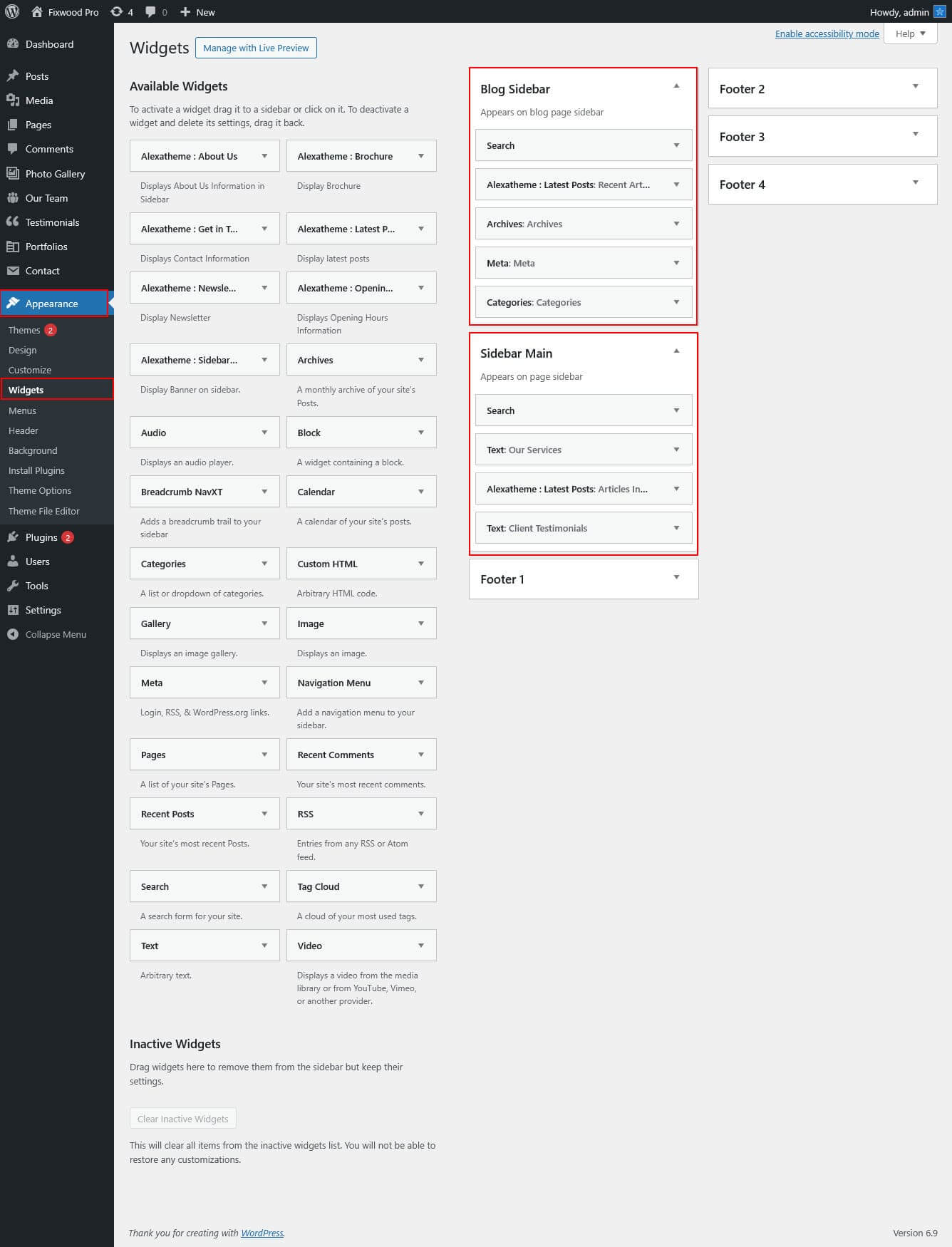
Custom Widgets
Theme Options
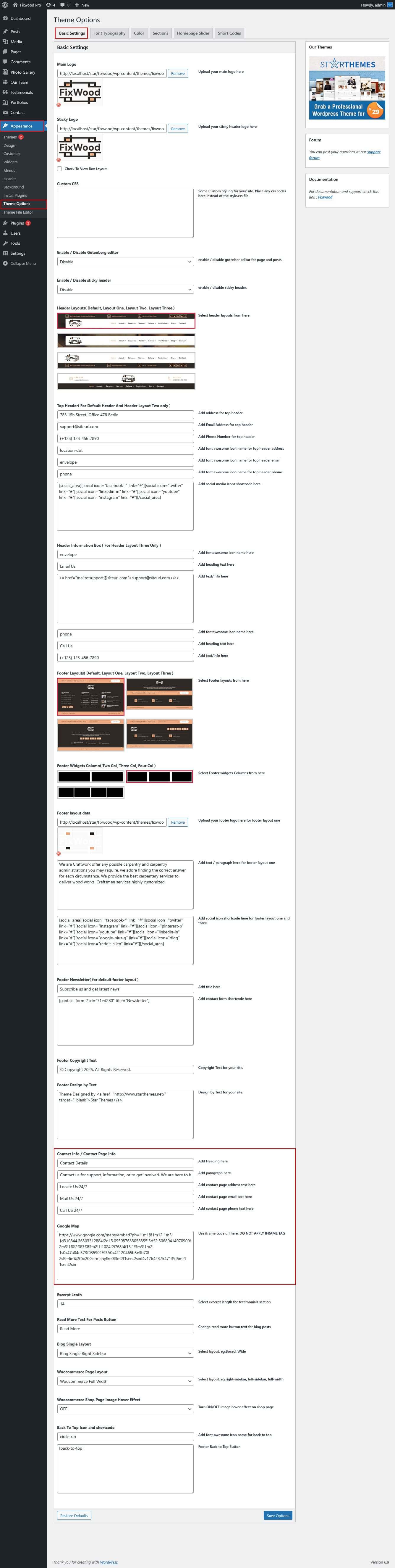
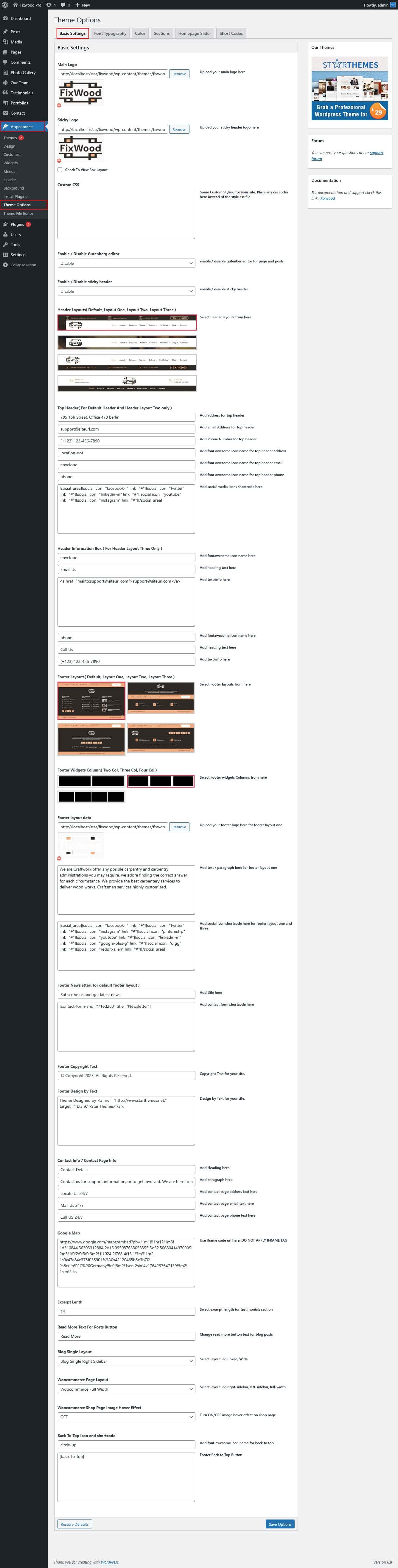
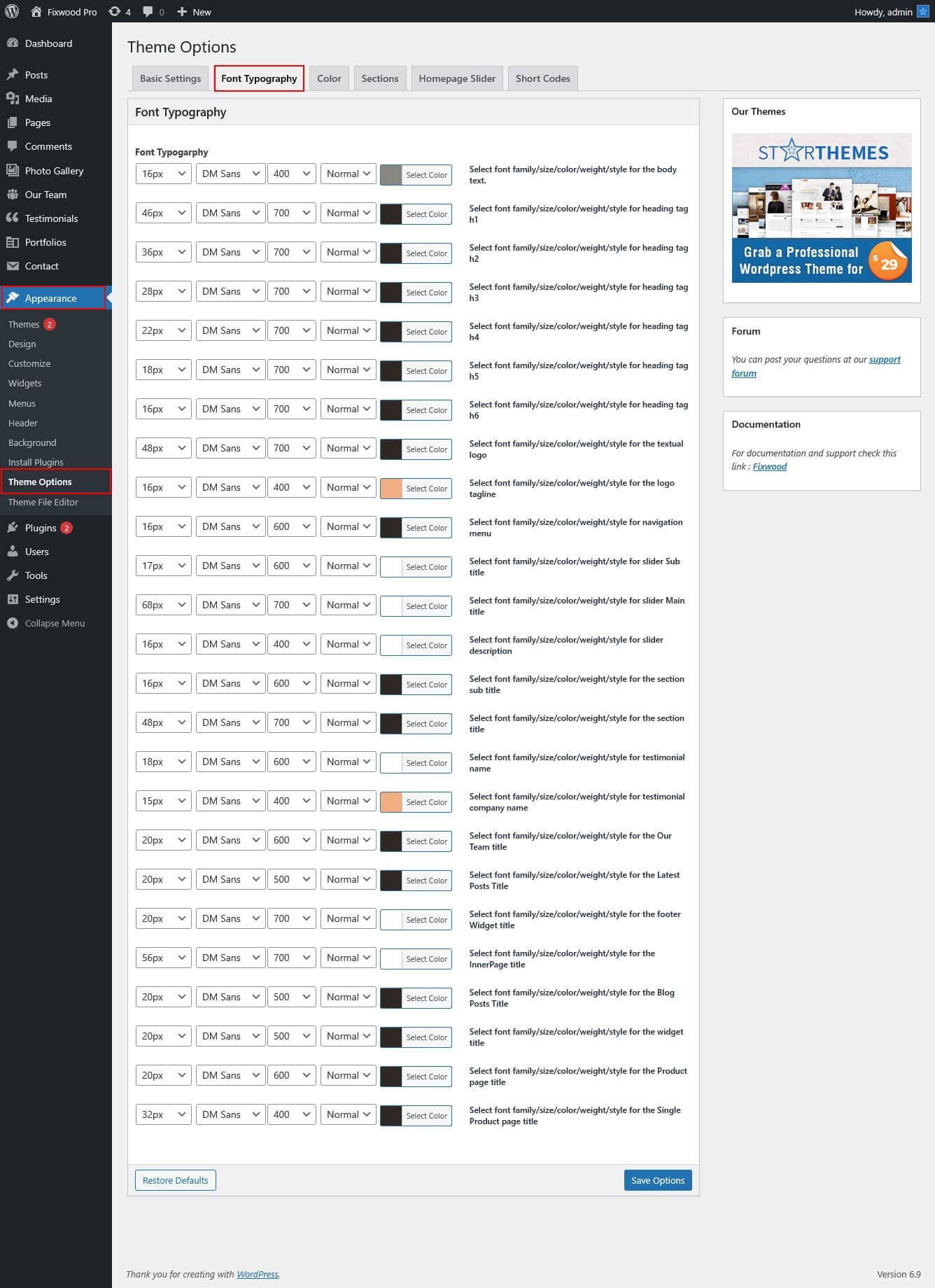
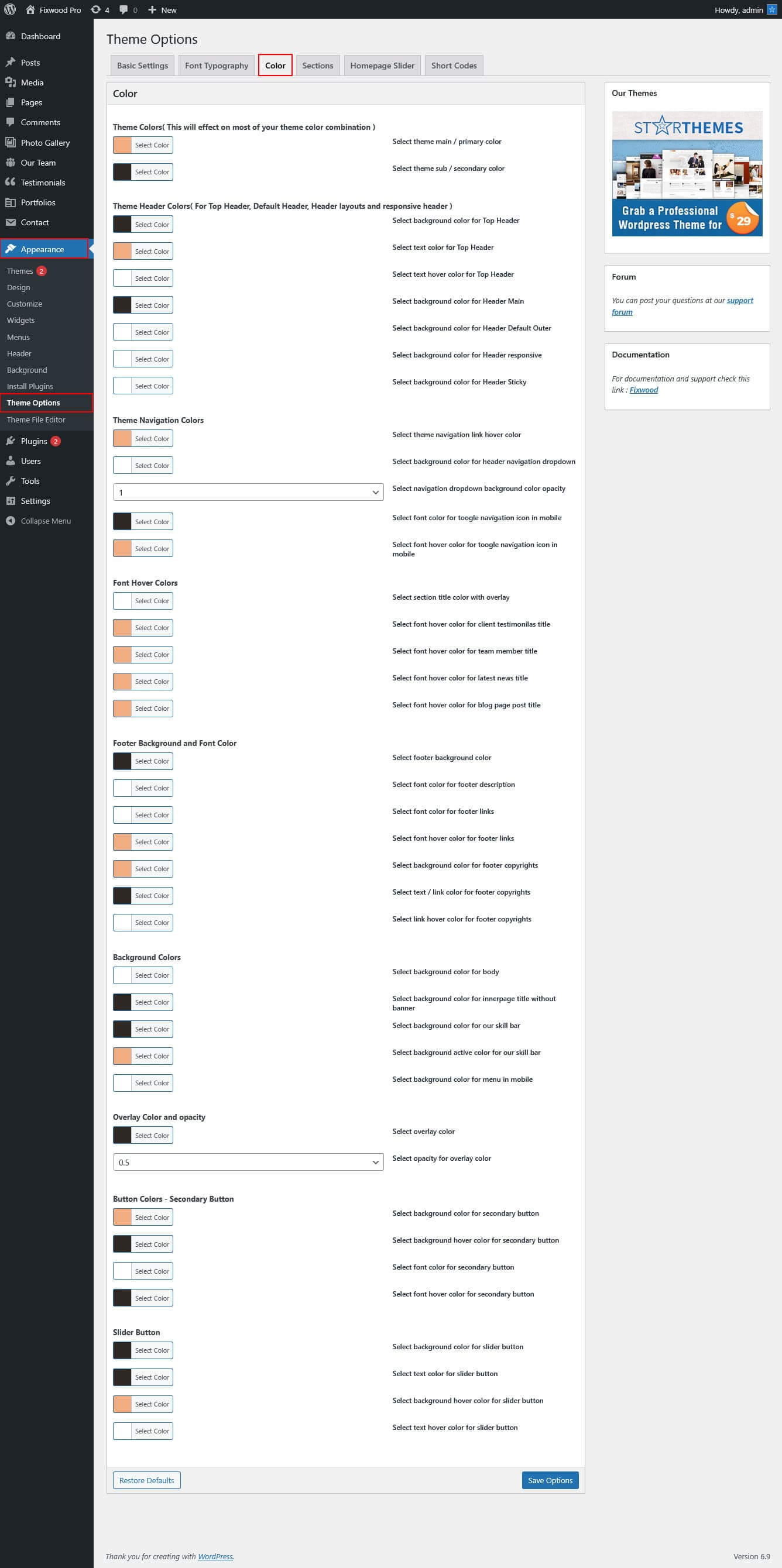
The following theme contains the Settings option. These settings allow you to change the theme’s color palette, order of items, turn items on/off and do lots of other things. In order to use these settings, please go to Appearance → Theme Options.
Basic Settings
Font Typography
Font Color
Sections
Slider Settings
Shortcode
Contact Form 7
The following plugin Settings option. First upon search contact form 7 plugin and follow the below instruction, please go to Plugin → Add New.
Plugin Installation
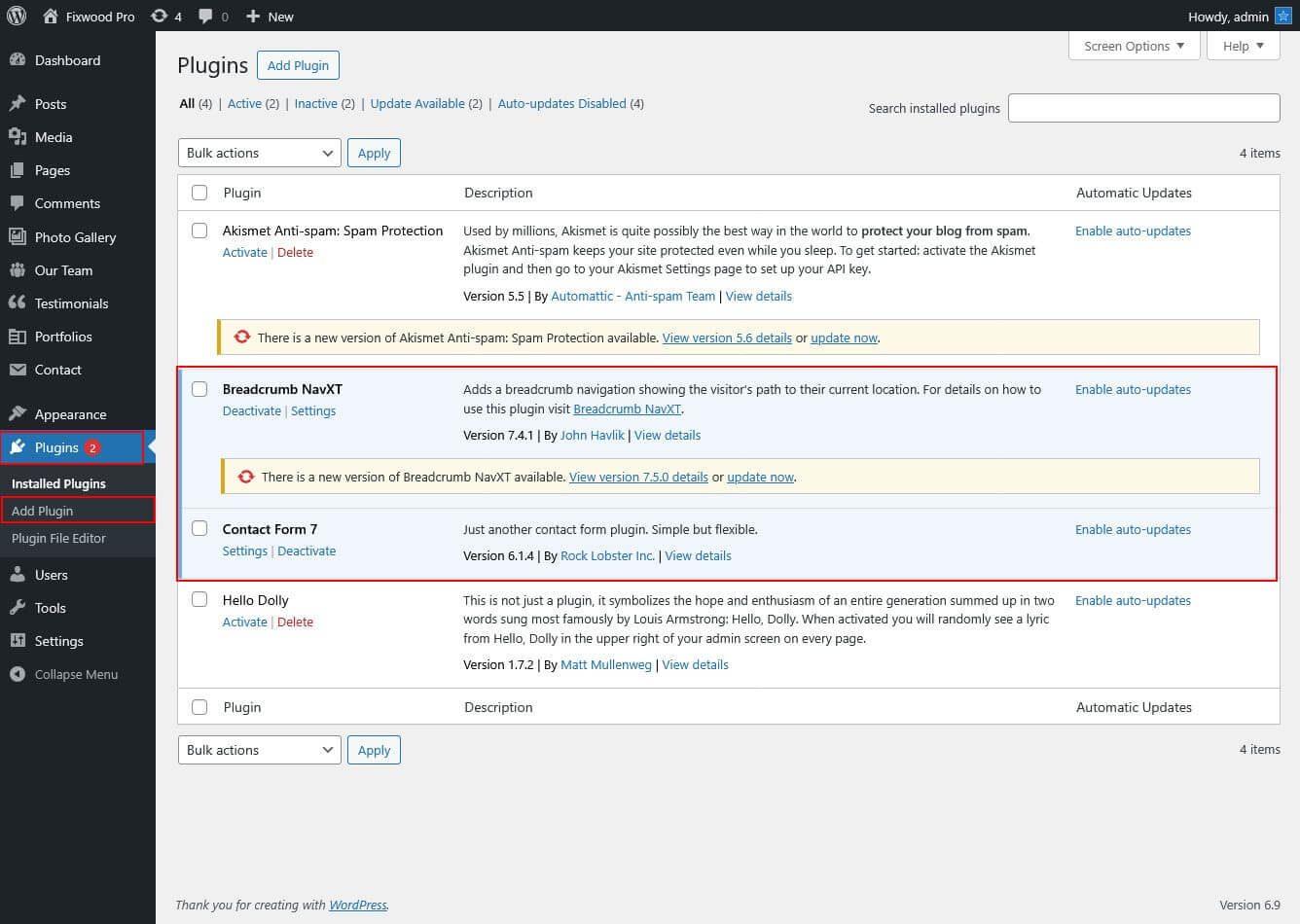
Plugin Use
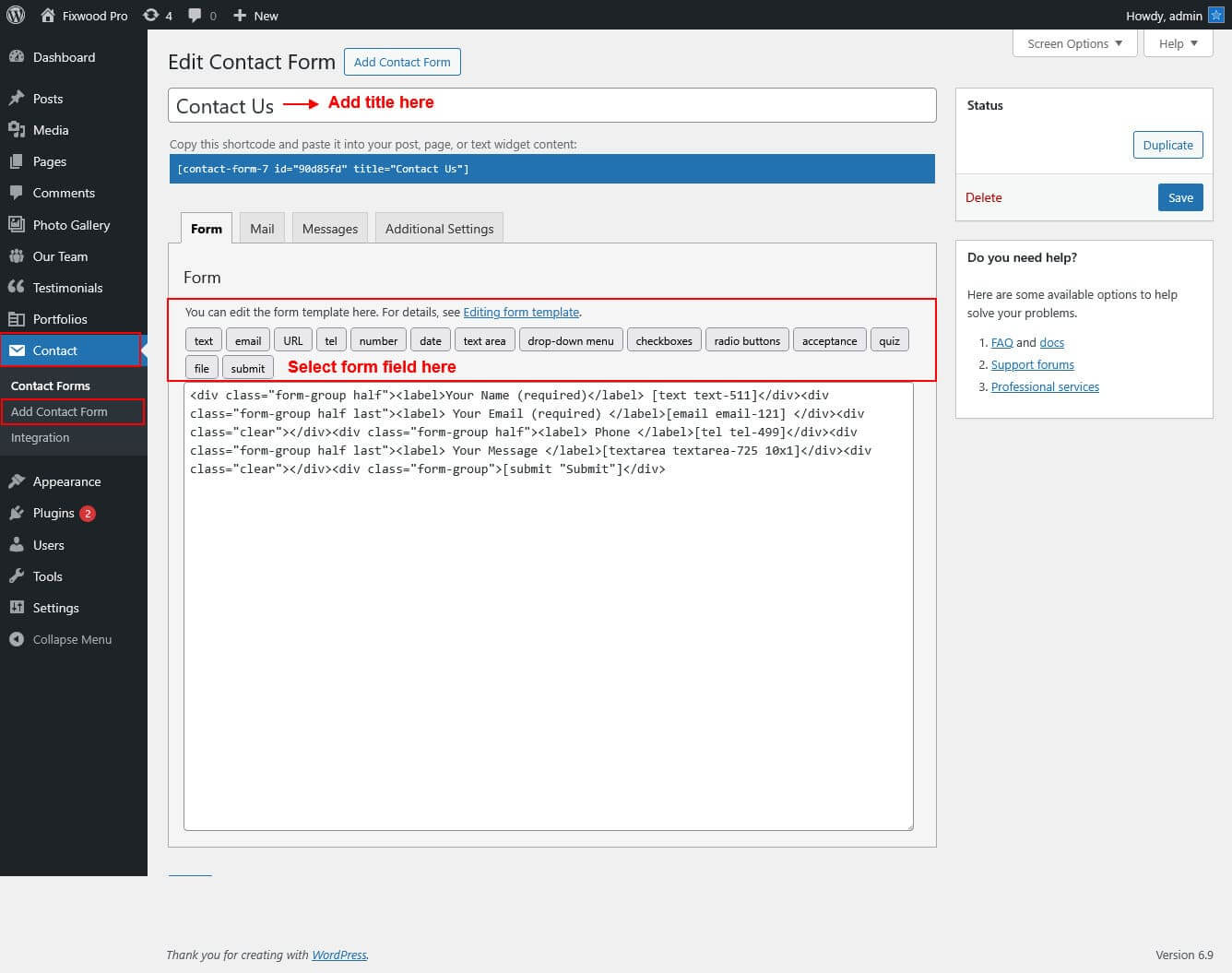
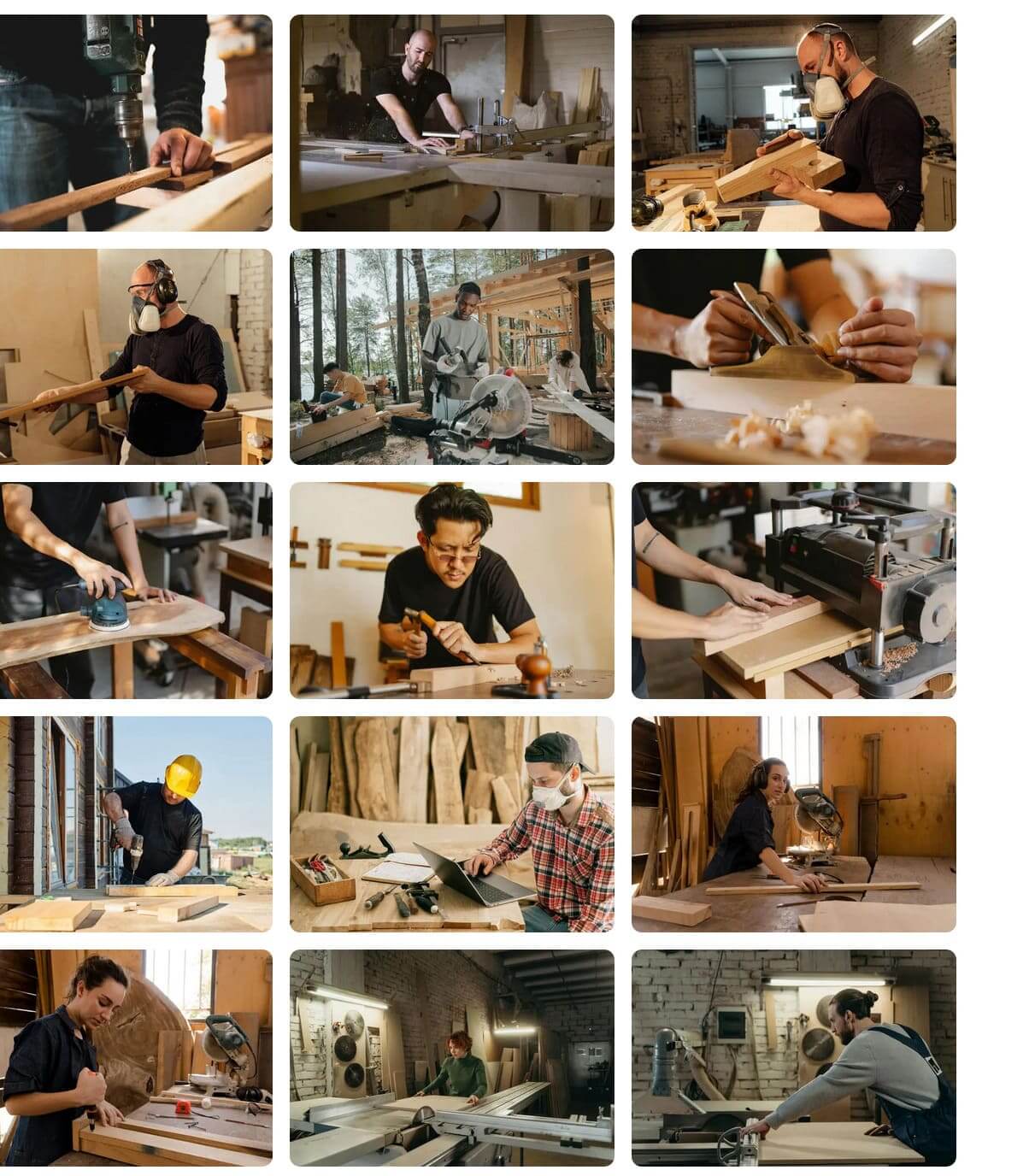
Photo Gallery
Setup Gallery Page
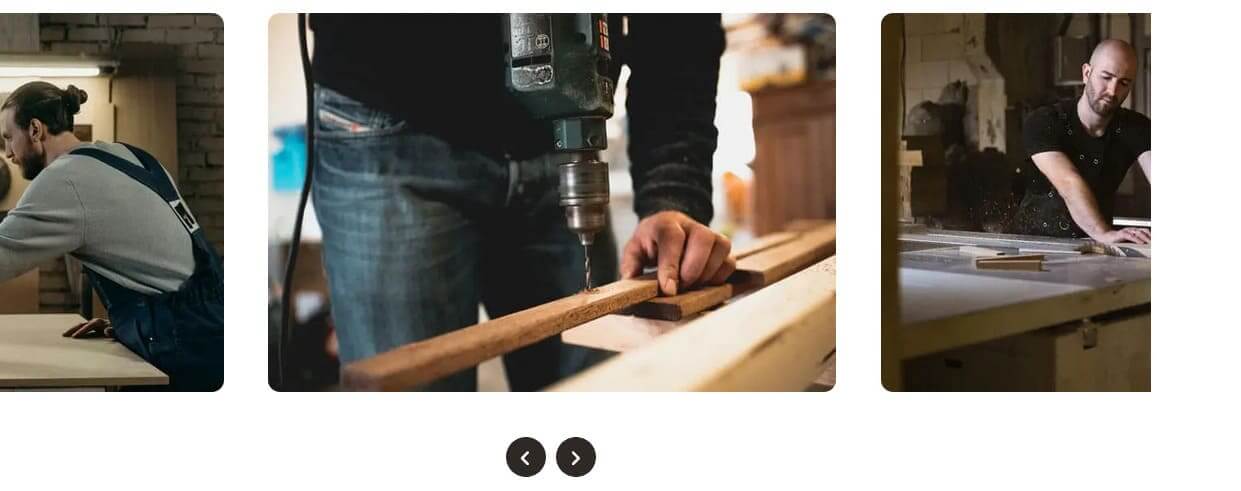
Gallery Slider
For setting up photo gallery page first of all you need to add some posts by using Photo Gallery Posts. Follow below instruction to add posts.
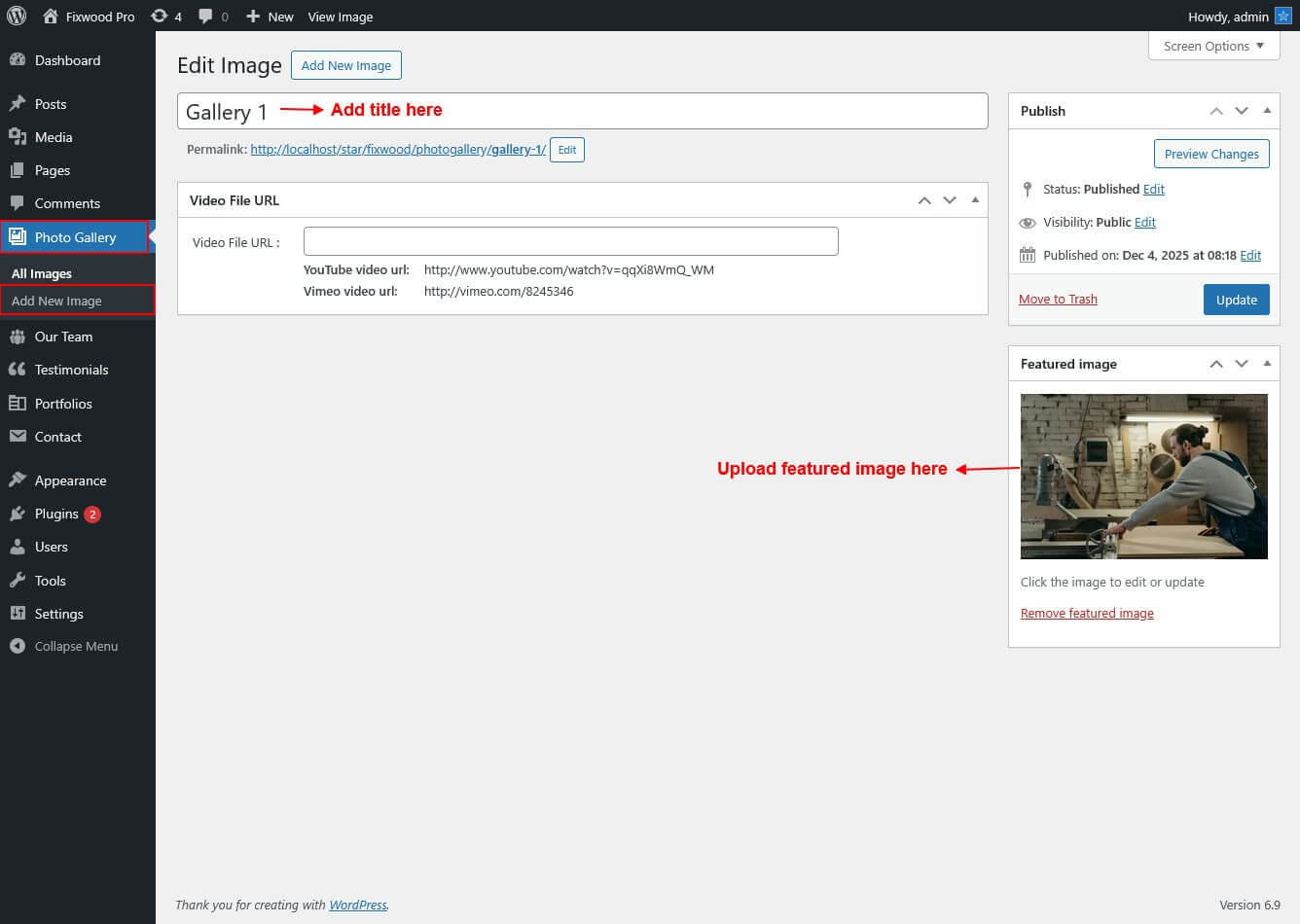
Once you added posts in the Gallery Page Posts type after that you just have to add post shortcode in the gallery page content area and you'r done.
Shortcode/Content for Gallery Page
Grid Layout : [photo-gallery show="-1" type="grid"]
Slider Layout : [photo-gallery show="-1" type="slider"]
Contact Us
Setup Contact Us